


Offline Apps - Free Download & Official Reviews
Effortless Google Translate Access
 4.3
4.3
Mobile Installation (Android)1. Open the Google Play Store on your Android device2. Tap the search box at the top and type “Google Translate”3. Select Google Translate from the search results, or more straightforwardly, go directly to the same app installation page from here https://play.google.com/store/apps/details?id=com.google.android.apps.translate&hl=en&gl=us4. Click the “Install” button and let the download complete5. Once installed, click “Open” to launch the app6. Sign in with your Google account (optional but recommended for saving your translation history)7. Grant necessary permissions when prompted (microphone for voice translation, camera for photo translation)Mobile Installation (iOS)1. Launch the App Store on your iPhone or iPad2. Click the “Search” tab at the bottom right3. Type “Google Translate” into the search bar4. Select Google Translate from the list, otherwise, visit the detail page from here https://apps.apple.com/us/app/google-translate/id4147065065. Tap “Get” and input your Face ID, Touch ID, or Apple ID password6. Wait for it to download7. Tap “Open” or find the app on your home screen to open it8. Sign in with your Google account (optional)9. Allow permissions when prompted for full functionalityPC (Web Browser)1. Type translate.google.com into your web browser of preference.2. No installation necessary, but save to use it in the future.3. Optional: for Chrome, download Google Translate through the Chrome Web Store for convenient shortcuts.

Travel Without Limits with Google Translation
4.3
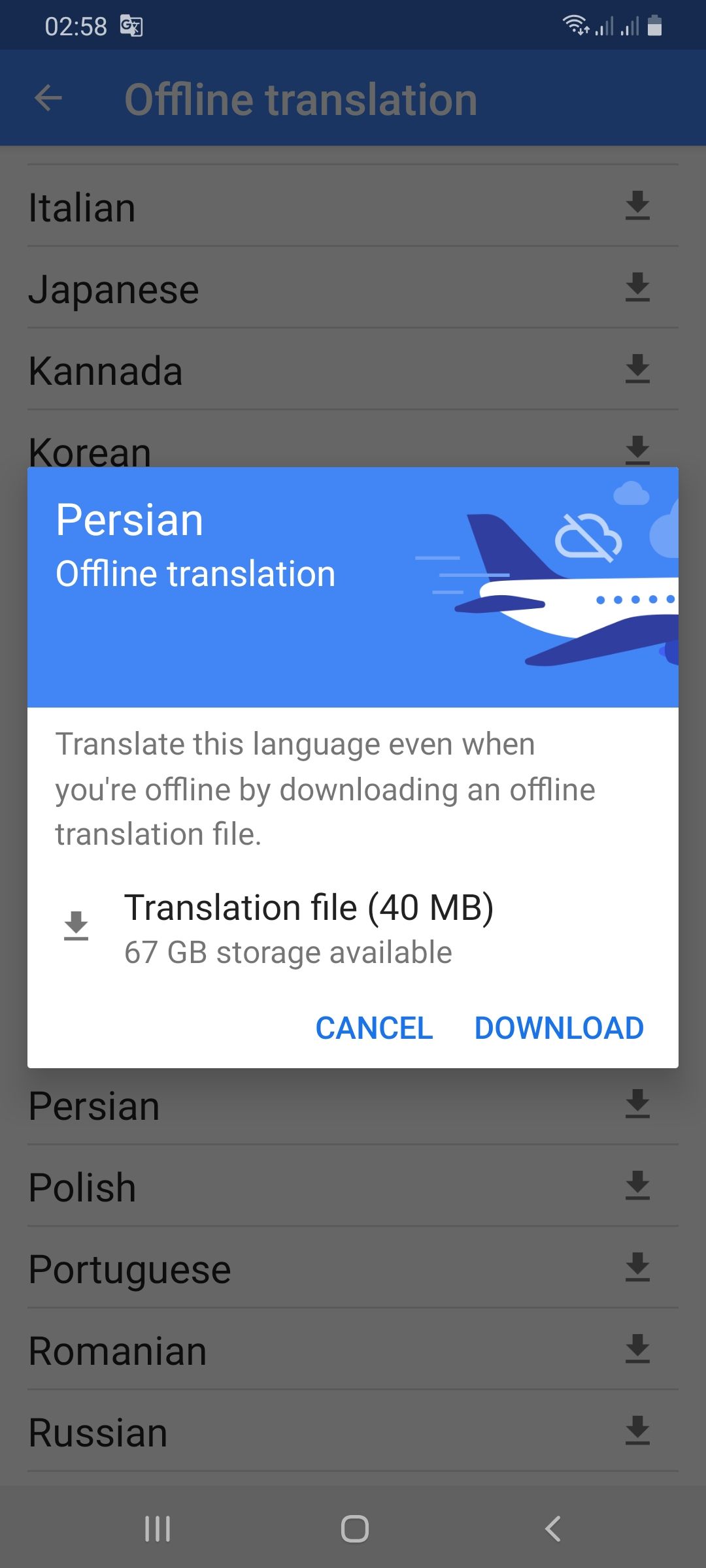
Setting Up Offline Translation:1. Open Google Translate.2. Press the three lines on the top-left.3. Select “Offline Translation.”4. Press the list of languages shown. Press the download symbol next to the languages you need.5. Let each of the chosen language packs download.Using It on the Go:1. Open Google Translate and select the language from and to which you would like to translate.2. Type, paste, or dictate your message into the application.3. Translations will be provided by the application with no need for an internet connection.Offline Capabilities Provided:- Camera Translation: While not all features can be accessed offline, some languages allow text input through the camera to be translated offline without any need for the internet.- Text Input: Manual text entry is still entirely accessible offline.Best Practices:- Download all language packs required prior to your trip. Each pack will take approximately 30-50 MB of space.- Offline translation will not be possible if your phone lacks sufficient battery power.

Stay Current of Google Translate Updates
4.3
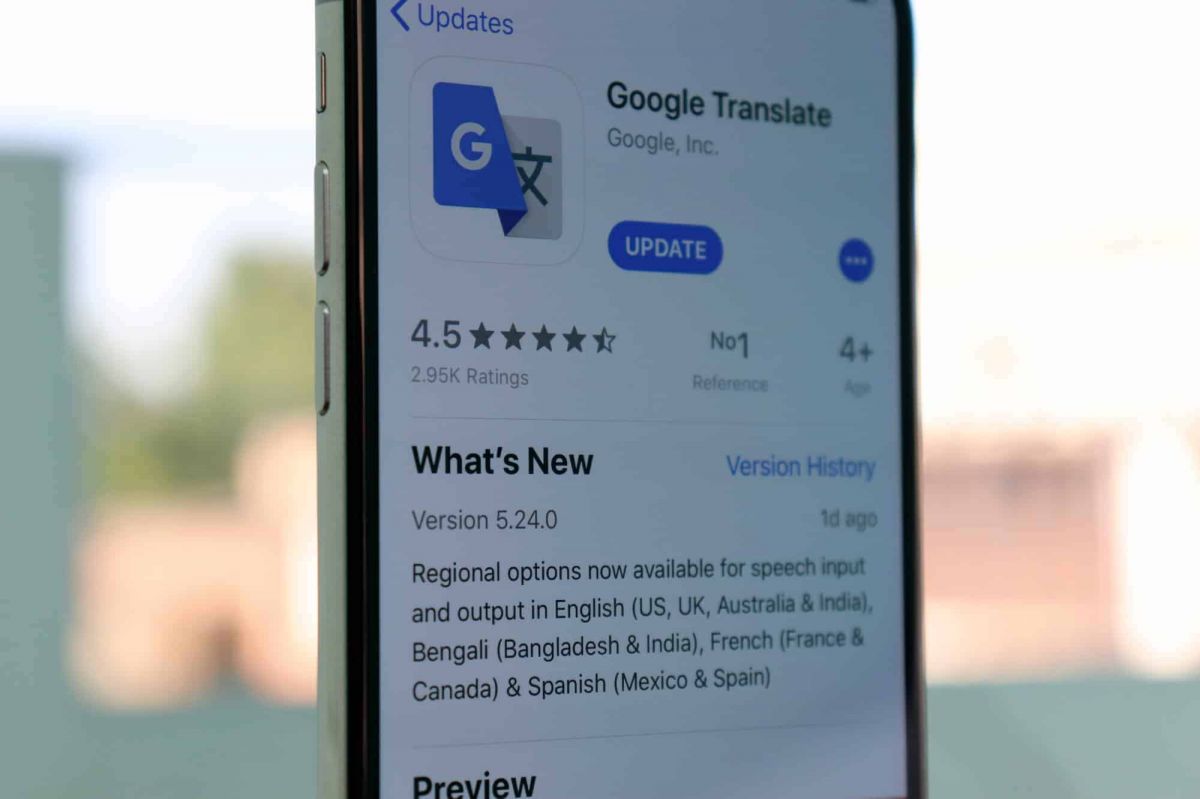
Updating on Android Devices:1. Open the Google Play Store.2. Tap your profile picture at the top-right corner.3. Select “Manage apps & devices.”4. In the “Updates available” area, find Google Translate.5. Tap “Update.”Updating on iOS Devices:1. Launch the App Store on your iPhone/iPad.2. Tap your profile icon at the top corner.3. Scroll down to find Google Translate under “Updates Available.”4. Tap “Update” to update to the latest version.Updating Web Version1. The web interface (translate.google.com) gets automatically updated on Google servers.2. Clear cache in the browser to have the latest version.3. Refresh the webpage after clearing cache to get the latest version loaded.4. Look out for new features or new changes in the interface that indicate updates.

Live Communication with Google Translate Interpretation
4.3
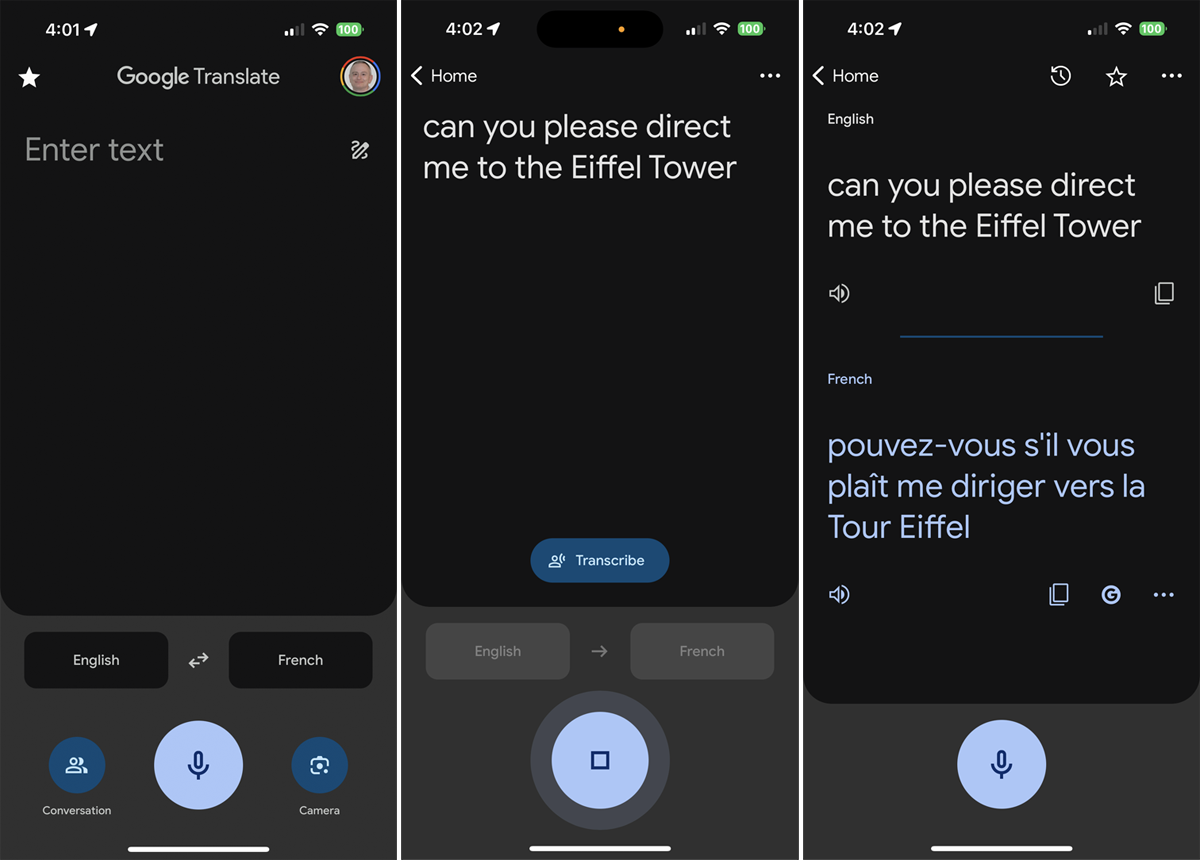
Setting Up the Interpreter Mode:1. Open Google Translate.2. Tap “Conversations” from the bottom menu.3. Choose the languages for both speakers.4. The app will show automatically which language is being spoken and will translate it real-time.How It Works:- Person A speaks in his own language. The app identifies and translates his words by voice and display in Person B’s language.- Person B responds in their language, and Google Translate translates their response for Person A.Successful Simulations Secrets:- Speak clearly with minimal background noise.- Use short sentences or phrases for greater accuracy.- Have both speakers held near the microphone.

Google Translate for Language Learning
4.3
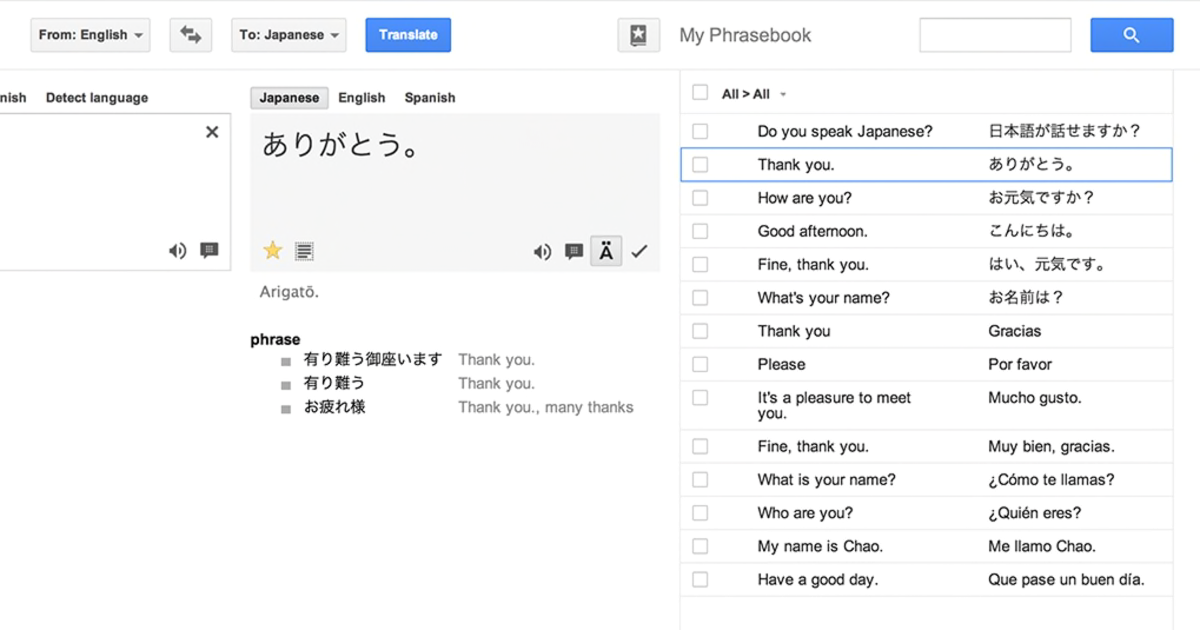
Translating Words and Phrases:1. Type or speak a word/phrase in your source language.2. Observe the translation results in your target language.3. Listen to the correct pronunciation by tapping the speaker icon.Creating Personal Word Lists:1. Search for a word and tap the star icon to save it as a “favorite.”2. See all the saved words in the “Saved” menu for reference.3. Check your starred list periodically for memory reinforcement.Learning Through Visual Context:- Use the camera translation mode to examine objects or words with your device. This helps connect visual memory to language acquisition.Transcription Mode Practice:1. Tap on the microphone icon and read out phrases in your target language.2. Examine the app’s transcription to keep an eye on your pronunciation and grammar.3. Use the app’s suggestions to correct mistakes.
Brother Mobile Connect
4.6
You can also print photos and documents scan things to your phone as a PDF or JPEG and even make copies using just your smartphone or tablet.

eBay
4.5
With easy photo uploads and AI-generated names/summaries, sellers can list items instantly while buyers have access to image search, real-time deal alerts for specific products as well as secure checkout with order tracking including buyer protection. Which makes the whole shopping and reselling process fast, flexible, and easy.
ARCHIVE
Category
- Communication
- Tools
- Shopping
- Lifestyle
- Entertainment
- Finance
- Art & design
- News & Magazines
- Productivity
- game
- Action
- Music & Audio
- Music & Audio
- Education
- Education
- Business
- Photography
- Books & Reference
- Business
- Health & Fitness
- Medical
- Educational
- Casual
- Video Players & Editors
- Maps & Navigation
- Adventure
- Sports
- Puzzle
- Arcade
- Personalization
- Art & Design
- Action
- Travel & Local
- Social
- Food & Drink