

Hot App Reviews - Best Free Apps Download & Guides

Install Instagram at No-Cost
WhatsApp Setup

Download and Install YouTube

Alternatives of Play Store
 4.8
4.8
Let’s take a closer look at some of the popular Play Store alternatives.1. Aptoide- A community-driven marketplace boasting millions of apps, without any geo-restriction.- Users can upload their own apps with relative ease, promoting diversity in available content.2. Amazon Appstore- Provides a wide array of applications with strong developer support.- Commonly known for integrations involving Amazon devices such as Kindle Fire.3. APKPure- The app addresses a wide, varied provision of APK files directly to users for self-installation.- Very helpful in apps that are not published in your region or have restrictions via Google policy.4. F-Droid- Exclusively features open-source applications.- Ideal for users who value privacy and transparency in software development.

Amazon’s Virtual Try-On
4.8
Steps to Using Virtual Try-On1. Open Amazon Shopping and go to any product that supports Virtual Try-On, such as shoes or sunglasses.2. Tap on the “Virtual Try-On” option available on the product page.3. If prompted, follow the prompts to enable camera access.4. Point your device’s camera either at yourself or at your feet according to the prompt.5. Tap on styles or colors to see them live on you.BenefitsClearly, it helps you make confident purchasing decisions through a real-time preview of how the fit and style will be, hence reducing the need for returns and exchanges.

How to Update Walmart
4.8
For iOS devices:1. Open the App Store.2. Tap on your profile icon at the top right corner.3. Scroll down to find pending updates; if Walmart is listed, tap Update next to it.For Android devices, follow these steps:1. Launch the Google Play Store.2. Tap the three horizontal lines (menu) in the top left corner.3. Select My apps & games and look for Walmart in the list of updates available.4. If Walmart shows up, tap Update next to it.For PC users accessing Walmart via browser, no update is needed; refreshing your browser will implement any changes/enhancements made on the website.

How to Make Banking Easy Using Citi Mobile
4.9
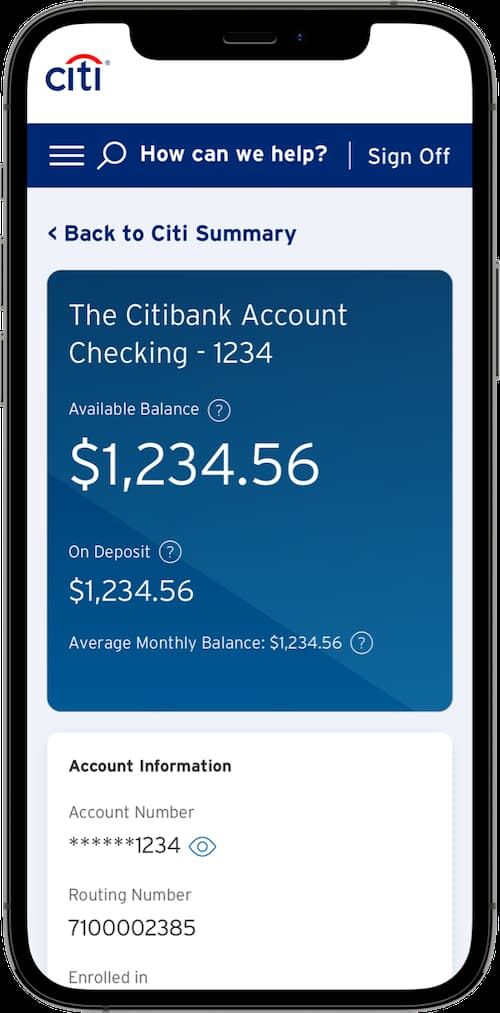
Open a New Account:1. Login to Your Citi Mobile: Open the application and log in with your credentials.2. Accounts Section: Go to the main menu and click on “Accounts.”3. Open New Account: Click to open a new account.4. Fill out Your Details: Fill in the information asked, such as name, address, date of birth, and social security number.5. Upload Documents: Upload any documents if required.6. Review and Confirm: Verify all information for accuracy before submission.Link an Existing Bank Card:1. Access the Settings Menu: Once logged in, tap “Settings.”2. Choose Link an Existing Card: Among the options, select this.3. Enter the Card Information: Enter your card number and other details.4. Confirm the Linking Process: Follow the on-screen prompts to complete linking your card.Fund Transfer:1. Tap on the Payments & Transfers option: Find this option on the main menu.2. Transfer Type: Choose whether to make an internal transfer or send funds to another bank account.3. Transfer Details: Fill in the amount, account number of the recipient, etc.4. Confirm Transaction: Verify all information and confirm the transfer.Account Balances Management:1. Account Balances: The first thing you see once you log into your account are your account balances.2. Transaction History: Click on Transaction History for each account for a record of the same.

Update ParkMobile
4.5
For Android Users:1. Open Google Play Store: Launch the Play Store app on your Android device.2. Open My Apps & Games: Tap the menu button-three horizontal lines in the upper left corner-open “My apps & games.”3. Locate ParkMobile: Scroll down to the bottom to list all installed applications and search for ParkMobile there.4. If available, it will say “Update” next to it; click that to begin downloading a newer version.iOS Users:1. App Store, Apple: Open the App Store from your iPhone or iPad.2. Your Profile Icon: Tap the profile icon at the right top of the screen.3. Look Down for Updates: Now locate your pending list for updates; if ParkMobile is in there, tap “update” on it.For PC Users:Since ParkMobile is web-based and accessed through browsers on PCs, all updates are done automatically on the server side. In case any issue arises while using parkmobile.io, just refresh your browser.

Delete PayByPhone Account
4.5
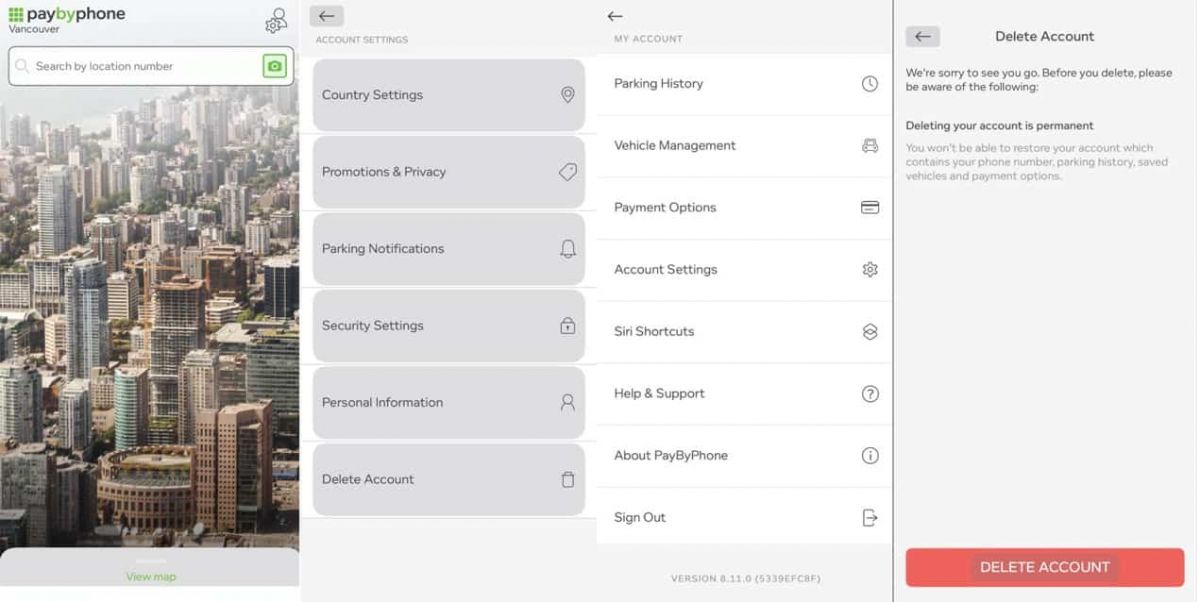
For Android Users:1. Open PayByPhone application.2. In the Menu section, tap Settings and then Account Settings.3. Tap “Delete Account” and confirm the action using the red button provided.For iOS Users:1. Open the application.2. In the Menu section, tap Settings and then Account Settings.3. Tap “Delete Account” and confirm your choice.Via Web Browser:1. Access your account through paybyphone.com.2. Go to Account Settings.3. Go down to “Delete Account” and agree on the deletion of the account as required.Deletion works to avoid create a situation whereby all your information linked to the account is stored on their server.

Send Money with PayPal
4.6
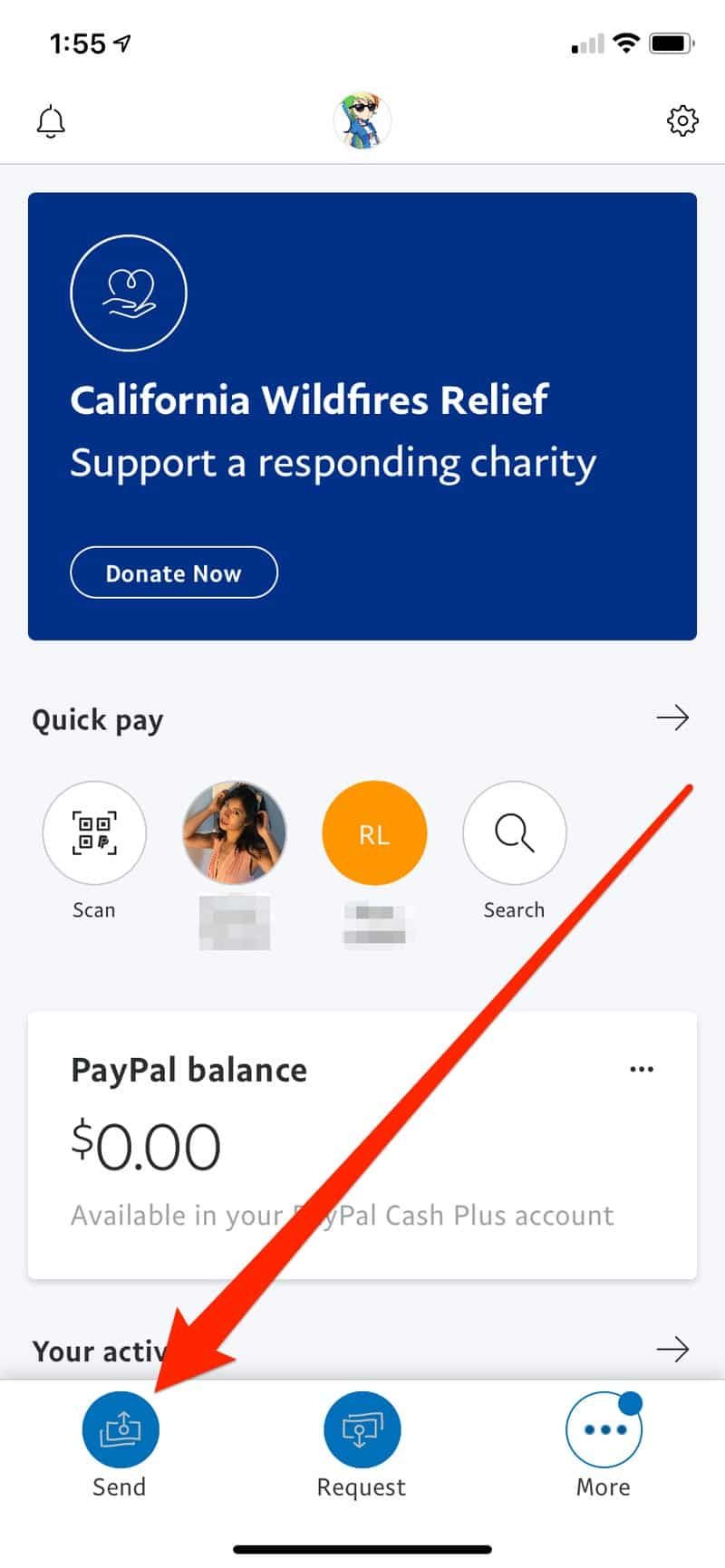
Steps for Sending Money:1. Login to Your PayPal Account: Open the application or launch the website and log in with your credentials.2. Tap “Send”: The “Send” option is at the bottom of the home page.3. Enter Recipient’s Details: Enter either his/her email or mobile number, which is linked with his PayPal account.4. Specify Amount: Type the amount you wish to send and select the currency if needed.5. Select Type of Payment: Choose “Friends and Family” for personal transfers, while “Goods and Services” for purchase-related payments.6. Payment Method: Tap to select which funding source you wish to fund this transaction with, either bank account, credit card, or via PayPal balance.7. Add Note (Optional): This is optional but you can insert a note on the transaction here if you so wish.8. Review: Go through every detail carefully, then tap on “Send Now”.

Qu'est-ce que Waze et pourquoi l'utiliser?
4.6
Trafic en temps réel :Waze analyse les conditions de circulation grâce aux données partagées par ses utilisateurs.Alertes communautaires :Recevez des signalements sur les accidents, radars, travaux ou tout autre obstacle.Gain de temps :Waze recalculera instantanément votre itinéraire pour éviter les bouchons et vous faire gagner du temps.Personnalisation :Vous pouvez ajuster vos préférences de navigation, choisir des itinéraires spécifiques ou personnaliser la voix de guidage.

Update Zelle Across Devices
4.5
Update on Mobile (Android & iOS)1. Automatic UpdatesAndroid: Open your profile icon in the Google Play Store, enter “Manage apps & device,” and turn on “Update automatically.”iOS: Under Settings, locate “App Store” and activate “App Updates.”2. Manually UpdatingAndroid: Look for the Google Play Store or your bank using the search key and update from there, IF available.iOS: In the App Store, tap your profile icon, scroll to see pending updates, and tap Update next to your banking app or Zelle.Update via Online Portal of BankIf you access Zelle through your bank’s online portal, most of the updates happen from the server side by the bank, and you will have nothing in particular to do to keep Zelle updated. Be sure, however, that your browser is updated, as this will ensure the best and most secure user experience.

Google Visual Search
4.1
Using Google Lens on Android:1. Launch Google on your Android device2. Tap the camera icon in the search box (Google Lens)3. Position your camera in front of the object that you are trying to recognize4. Press the camera’s shutter button to capture the photograph5. Let Google scan the picture and display search results6. Scroll through the matches for your image search7. Click on any result for more informationAccessing Google Lens on an iPhone:1. Launch Google on your iPhone or iPad2. Tap on the camera icon beside the search bar3. Grant camera authorization if asked4. Look at your object via the camera5. Press the capture key6. Observe what Google shows for the object discovered7. Compare similar objects or related search outcomes