Hot App Reviews - Best Free Apps Download & Guides

Install Instagram at No-Cost
WhatsApp Setup

Download and Install YouTube

Add Vehicles to Your Account
 4.5
4.5
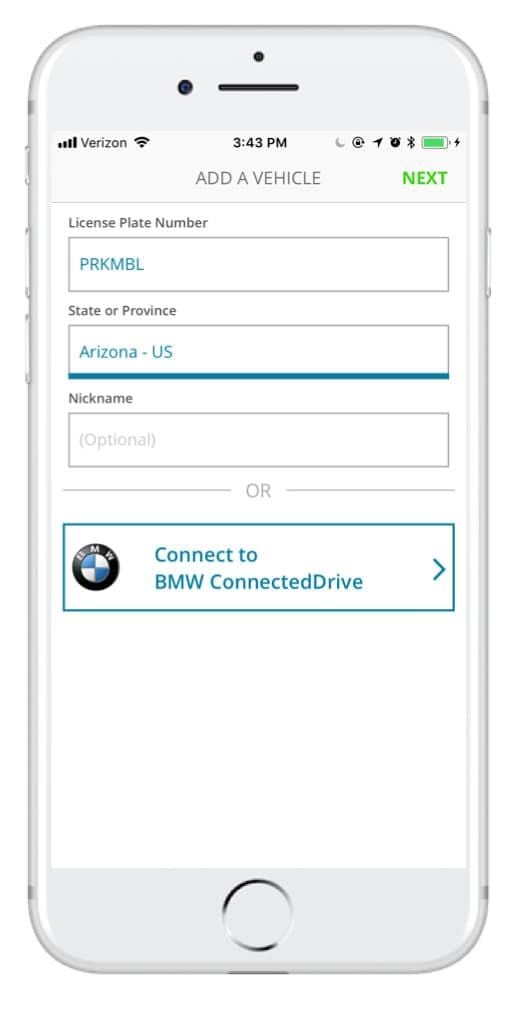
How to Add Vehicles1. Access via App or Website: Access ParkMobile from your smartphone or visit parkmobile.io from your computer.2. Settings Menu: Tap your profile icon to open settings in-app or tap “Account Settings” if you use the website.3. Vehicles Section: Tap on “Vehicles”-you see listed any entries, along with an option to add new.4. Add New Vehicle:- Tap “Add New” or click the “+” button next to existing vehicles.- Fill in any of the required information: license plate number, state of registration, and nickname.5. Save Changes: After entering all of the information, tap “Save” or “Add Vehicle.” Do this for multiple vehicles per account, up to five per account.6. Default Vehicle - Optional: You might want to select a default vehicle. That way, each time you go to make a reservation, the system will default to this vehicle unless changed by you.

Delete PayByPhone Account
4.5
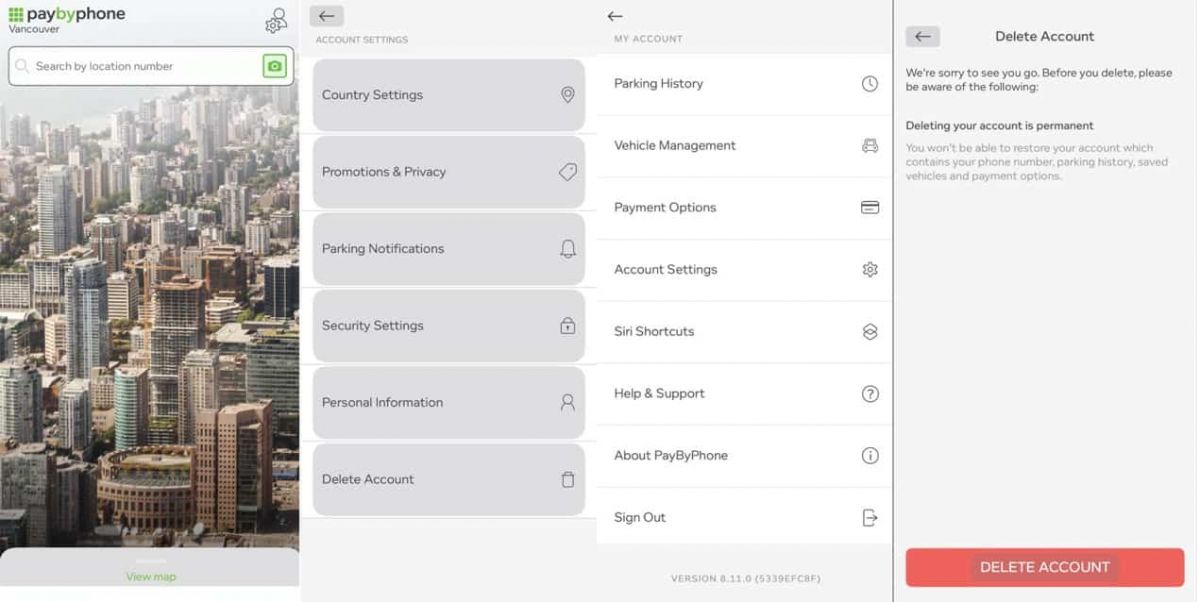
For Android Users:1. Open PayByPhone application.2. In the Menu section, tap Settings and then Account Settings.3. Tap “Delete Account” and confirm the action using the red button provided.For iOS Users:1. Open the application.2. In the Menu section, tap Settings and then Account Settings.3. Tap “Delete Account” and confirm your choice.Via Web Browser:1. Access your account through paybyphone.com.2. Go to Account Settings.3. Go down to “Delete Account” and agree on the deletion of the account as required.Deletion works to avoid create a situation whereby all your information linked to the account is stored on their server.

Activate PayPal Account
4.6
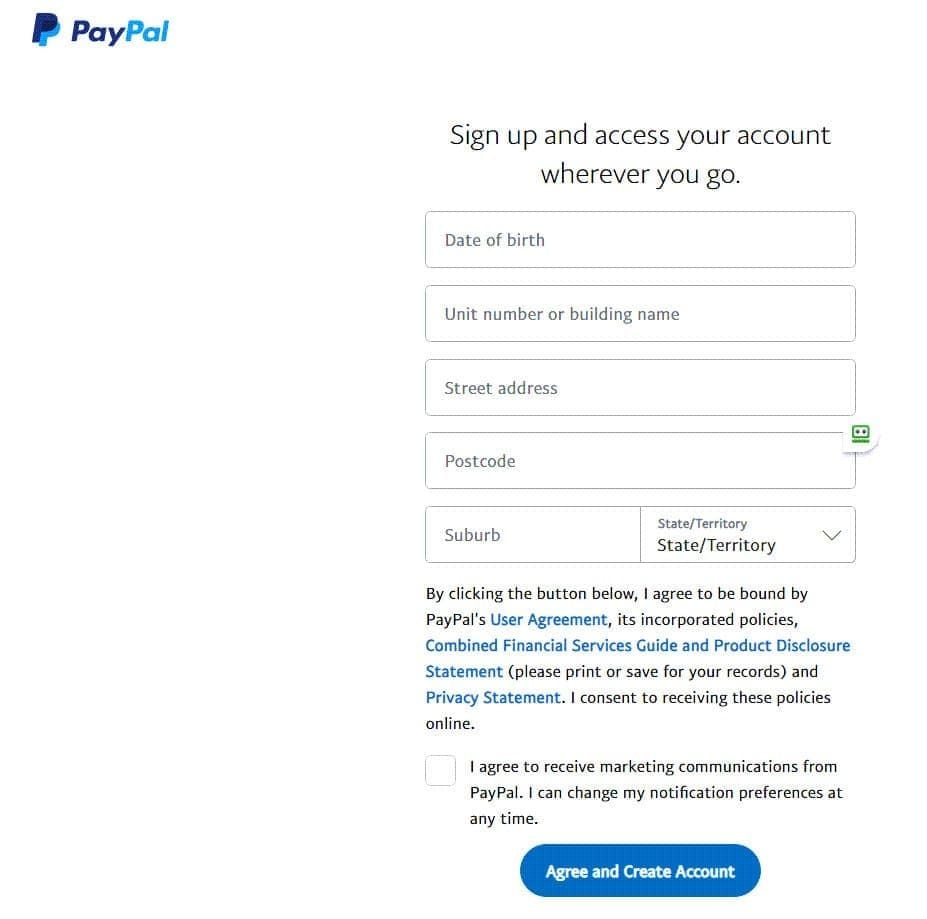
Steps to Create a PayPal Account:1. Visit PayPal Website or Download the App: Open your browser and go to [www.paypal.com] or if you are using any phone or tablet, search for it in the marketplace of your device .2. Click on ‘Sign Up’: To register a new account, go to homepage, the button you need to tap will be “Sign Up.”3. Choose Account Type: Choose between a Personal Account where you can shop and send money as well as a Business Account where you can receive payment and manage business ventures.4. Personal Information: Input your e-mail address, choose a proper password, and type more information including your name and address.5. Agree to Terms: Tick the box that mentions that you have read the terms and conditions of PayPal, and after that press “Agree and Create Account.”6. Add Payment Methods: You can tie your credit/debit card or even bank account in order to facilitate easy and fast transactions.7. Verify Your Email Address: An email with the welcome note and verification link will be sent to your inbox, open the link to verify your account.8. Complete Identity Verification: Provide any additional information required, including uploading ID proof if necessary.

Qu'est-ce que Waze et pourquoi l'utiliser?
4.6
Trafic en temps réel :Waze analyse les conditions de circulation grâce aux données partagées par ses utilisateurs.Alertes communautaires :Recevez des signalements sur les accidents, radars, travaux ou tout autre obstacle.Gain de temps :Waze recalculera instantanément votre itinéraire pour éviter les bouchons et vous faire gagner du temps.Personnalisation :Vous pouvez ajuster vos préférences de navigation, choisir des itinéraires spécifiques ou personnaliser la voix de guidage.

Setup Zelle for Recurring Payments
4.5
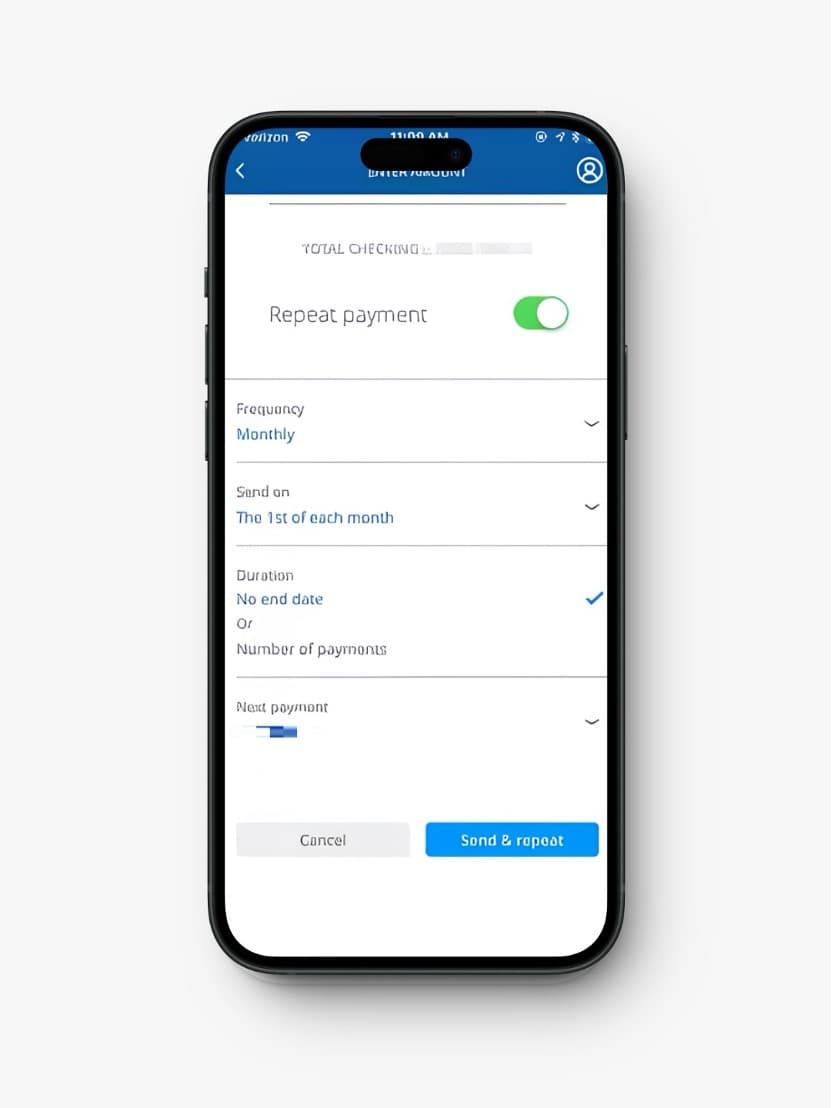
Pay with Bank’s Bill Pay Feature1. Log in to your online banking account through your bank.2. Look for and click “Bill Pay” or “Payments.”3. Add this person as a new payee whom you will pay on a regular basis. You usually need to provide the name and either the email associated with Zelle or a U.S. mobile number.4. For each payment, now select the added recipient and fill in the amount you are going to send; also, choose the frequency, such as weekly or monthly, set a start date, review the details, and confirm setting it up.5. Keep tracking your future payments to see that they go through appropriately.

Keep Google Updated
4.1
For Android Users:Open the Play Store on Google and access the “My apps & games” page via the menu icon. Look for Google in the list of installed applications. If updated is available, you will see an “Update” icon beside the app. Tap on this icon and allow the update download and install automatically. For your convenience, you can enable automatic updating in the Play Store settings so your Google app is updated without your intervention.For iOS Users:Open your App Store on your iPhone or iPad and tap on your profile picture at top-right. Look for updates that are waiting to be installed. Look for Google and tap “Update” if you see it as an option, or “Update All” if you do not see it. Be on a secure Wi-Fi network in order not to be interrupted in between updating. After the update is complete, restart Google in order for the new features to be made accessible.On PC (Web Browser):No need for updates on those Google services accessed on the web, as they are in the cloud. However, keep your browser updated for optimal performance.

Keep YouTube Current
4.7
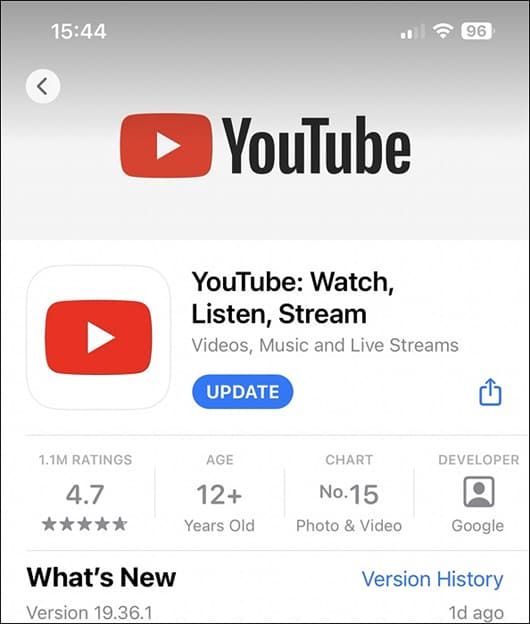
Step by Step SolutionsAndroid Phones:1. Open Google Play Store2. Access the “My apps & games” section and look for YouTube in the list of installed applications.3. If an update is available, tap “Update” to download the latest version.4. Allow the update to download and install. Ensure your device has enough storage space.iOS Devices1. Open the App Store application.2. Tap on your profile icon and scroll to the available updates list.3. Find YouTube and select “Update” to complete the process.PCsIf you are viewing through desktop browser, ensure your browser is up-to-date to support today’s web standards and thus indirectly offers an improved experience on YouTube. It will further offer improved performance when update implementation is applied on the web interface by clearing the cache and cookies.

Stay Updated Hassle-Free Across Devices
4.3
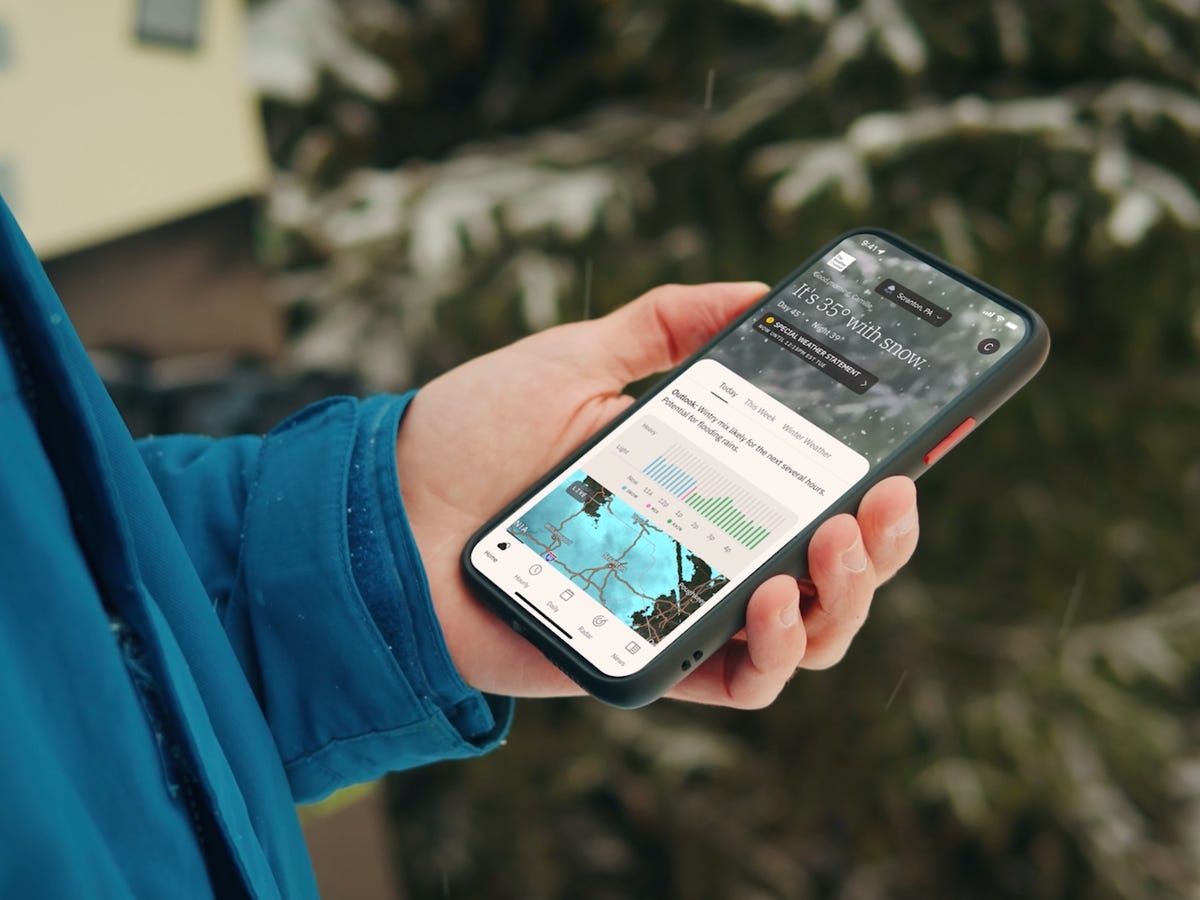
Updating on iPhone (iOS)1. Open the App Store on your iOS device2. Click on your profile picture in the top right3. Swipe down to see available updates for every app4. Locate The Weather Channel in pending updates list5. Tap “Update” next to the name of the app to start it6. Alternatively, tap “Update All” to install all apps at once7. Wait while download and install are completed8. After updating, launch the app to verify that it’s running smoothly9. Check the “What’s New” section to learn about new featuresUpdating on Android Devices1. Launch Google Play Store on your Android device2. Tap your profile icon in the top right3. Select “Manage apps and device”4. Search for “Updates available” to see pending updates5. Find The Weather Channel in the list6. Tap “Update” next to the app7. To get automatic updates, visit the page of the app8. Tap the three dots on the top right corner9. Choose “Enable auto-update” to update the app automatically10. Once updated, open the app to verify that the update was successfulUpdating on PC (via Web)The web version updates automatically, but keep your browser up to date for optimal performance.

How to Download NBA
4.2
Android Installation Guide1. To access the Google Play Store launch its icon through your Android home screen.2. Open the search bar that appears at your screen top and type “NBA”.3. Select NBA from the search results, or more straightforwardly, go directly to the same app installation page from here https://play.google.com/store/apps/details?id=com.nbaimd.gametime.nba2011&hl=en&gl=us.4. The download process will begin after users select the “Install” button.5. Choose the “Open” option in the app installer to launch the application or use it through your home screen or app drawer.6. Grant the permissions required when prompted for optimum usage.7. Sign up for an NBA account or use your current credentials to access all features.iOS Installation Process1. Use your iPhone or iPad to navigate to the App Store by selecting its icon under the main display.2. Tap the “Search” button at the bottom right of your screen.3. Open “NBA” in the search field of your device and hit the “Search” option.4. Select NBA from the list, otherwise, visit the detail page from here https://apps.apple.com/bg/app/nba-live-games-scores/id484672289.5. After selecting “Get” confirm the installation by using Face ID or Touch ID or your Apple ID password.6. Wait until the download completes together with its installation process.7. To access the app tap either the “Open” button or browse to the homepage where it resides.8. After the screen completes its account setup and setting configuration you should finish the process.Desktop Web Access1. Open any browser of your preference such as Chrome, Safari Firefox or Edge.2. Users can access the official NBA website through navigating to www.nba.com in their web browser’s address entry field.3. Find “Sign In” placed in the top right section of the page.4. Register a new account or log in using your existing NBA credentials.5. After logging in, you can access the majority of the same features available on the mobile app.6. For faster access, bookmark NBA website or place it on your desktop.7. Consider enabling notifications in your browser settings to remain current in real-time.

Travel Without Limits with Google Translation
4.3
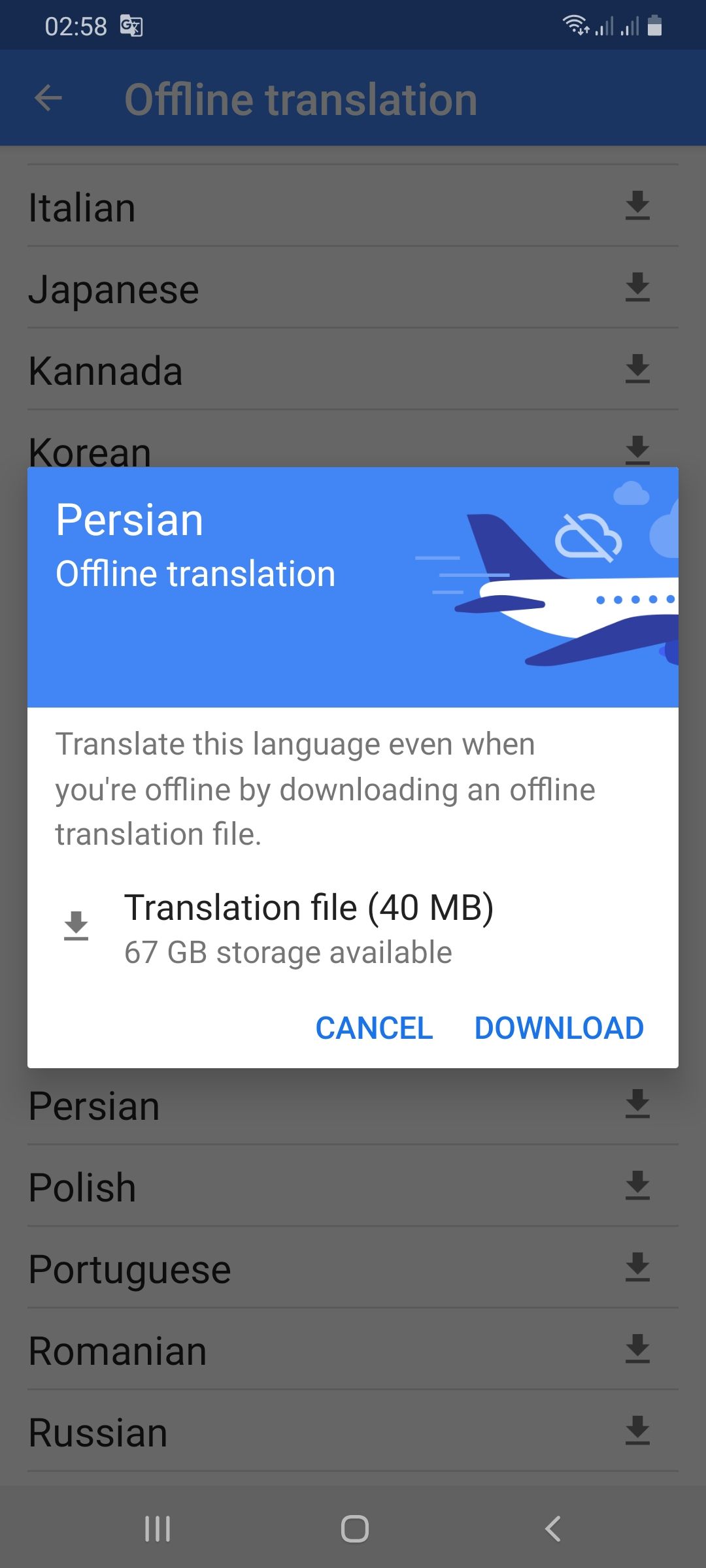
Setting Up Offline Translation:1. Open Google Translate.2. Press the three lines on the top-left.3. Select “Offline Translation.”4. Press the list of languages shown. Press the download symbol next to the languages you need.5. Let each of the chosen language packs download.Using It on the Go:1. Open Google Translate and select the language from and to which you would like to translate.2. Type, paste, or dictate your message into the application.3. Translations will be provided by the application with no need for an internet connection.Offline Capabilities Provided:- Camera Translation: While not all features can be accessed offline, some languages allow text input through the camera to be translated offline without any need for the internet.- Text Input: Manual text entry is still entirely accessible offline.Best Practices:- Download all language packs required prior to your trip. Each pack will take approximately 30-50 MB of space.- Offline translation will not be possible if your phone lacks sufficient battery power.