Tools Apps - Free Download & Official Reviews

Download No Cost Play Store
 4.8
4.8
How to Get ItFor Android Devices1. Pre-installed Access: Many Android devices come pre-installed with Play Store. You just open the app and sign in using a Google account to get started.2. Manual Installation: If the application isn’t available, download the APK file from a trusted source. After that, go into Settings > Security > Unknown Sources, and click the toggle to enable installation of third-party apps not on Play Store. Then, open the installed APK file.For PCsWeb Access: Fire up any browser and head to Play Store’s official address, http://play.google.com, where you can log in and then remotely manage apps as well as send downloads to connected devices.For iOS DevicesSadly, Play Store is not natively available for iOS because Apple has its own App Store. But yes, you can access a few Google services by downloading separate Google apps from the App Store.Exclusive Features Play Store Offers1. Google Play Protect: This feature scans apps for malware and harmful behavior, keeping the users safe.2. Library: Sharing bought applications with family.3. Personalized Recommendations: The store suggests applications based on users’ preferences and previous downloads.

Update Play Store
4.8
Where to Find Your Play Store Version1. Click Play Store icon on your device.2. Tap your profile picture in the top right, followed by “Settings.”3. Scroll to “About,” where your current version will be listed under “Play Store version.”How to Update Your Play Store1. Open the app.2. Tap your profile picture once more, followed by “Settings.”3. Under “About,” tap “Update Play Store.” If there’s an update available, it will start downloading and then install automatically.4. If you are already updated, it will say so in a message that your Play Store is current.Manual Update Using APK1. Download the latest Play Store APK from a well-trusted site, if you cannot update automatically.2. Go to Settings > Security > Unknown Sources, enable it.3. Download and install this APK to manually update your Play Store.

Make and Manage Payment in Play Store
4.8
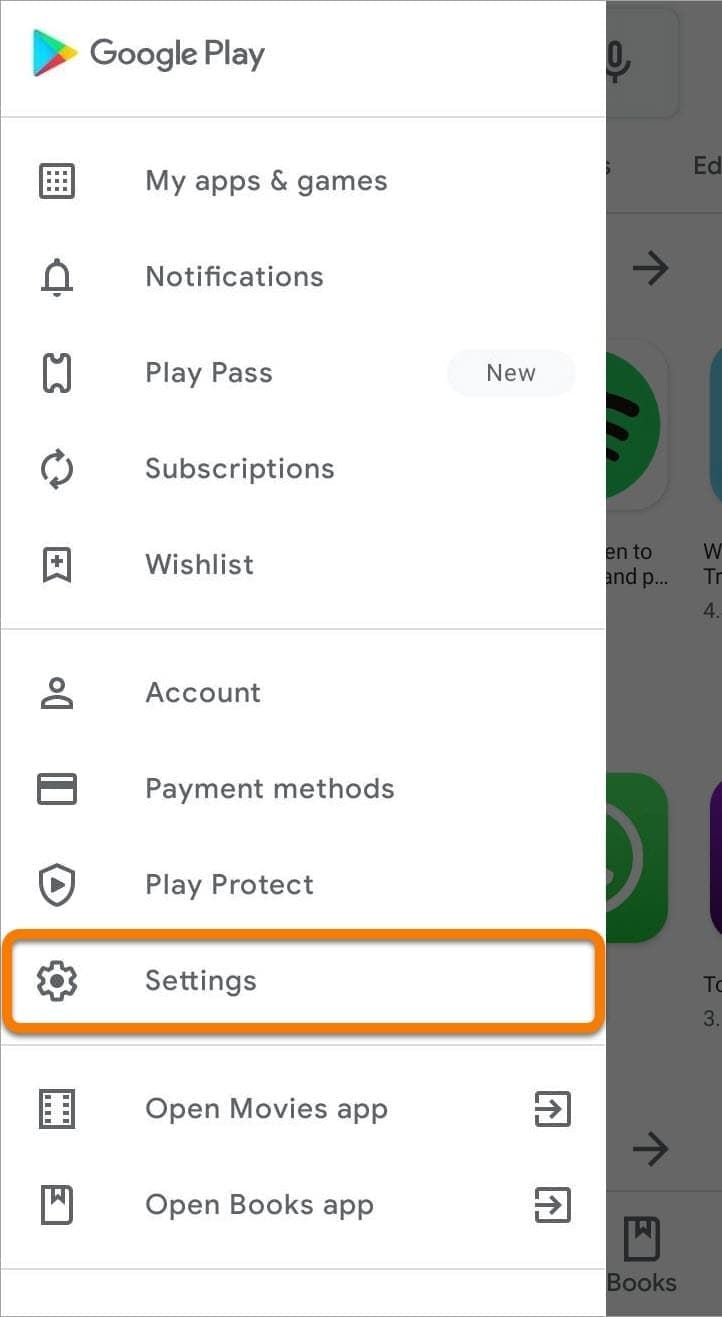
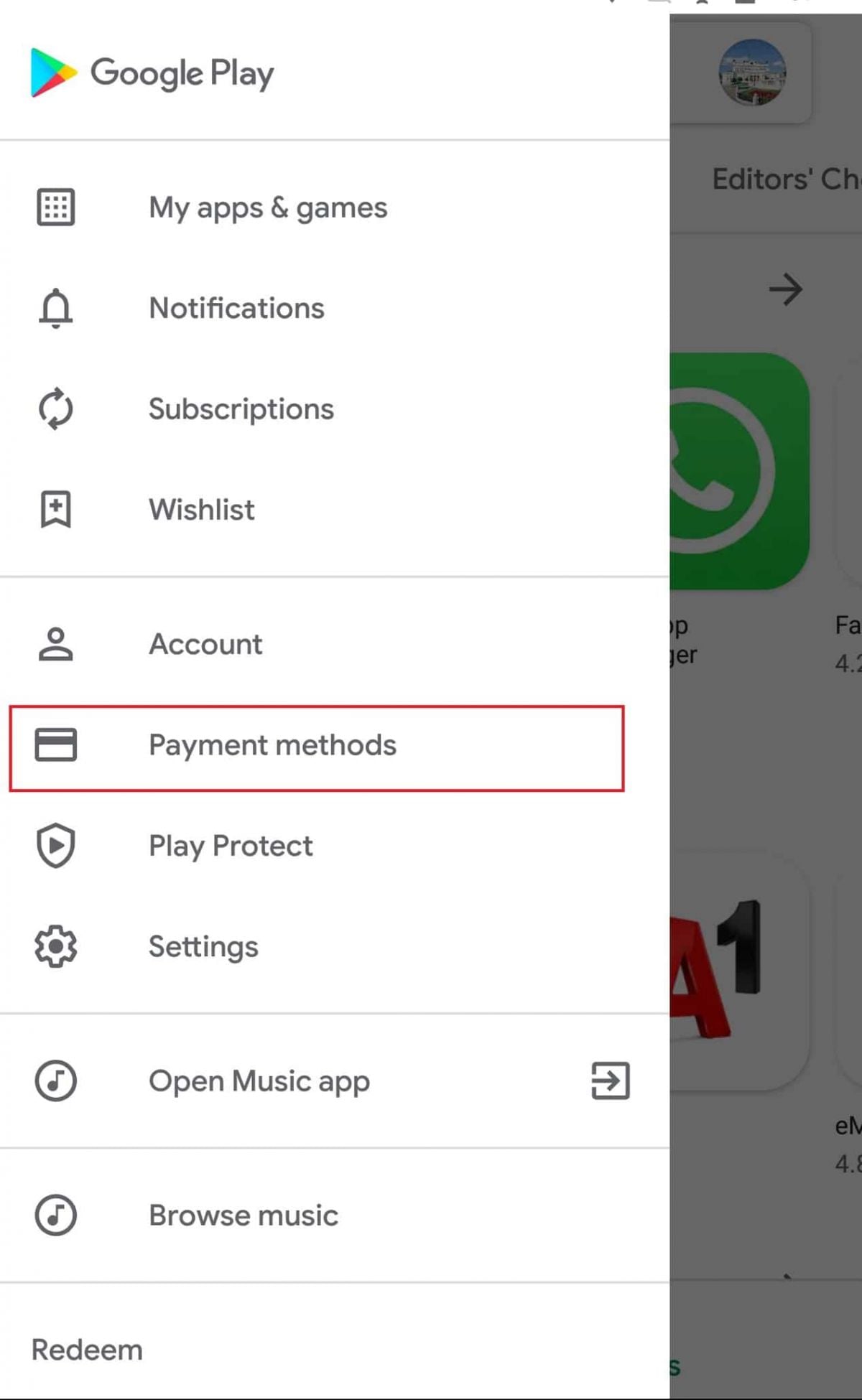
How to Make Purchases1. Open the application from the home screen of your device.2. You can search using the search bar or browse through categories.3. Tap the app or game you want to purchase.4. Tap the price button of corresponding app examples include “Buy” or “Install.”5. If prompted, select a payment method or add a new one.6. If prompted, follow any additional on-screen instructions to complete your purchase.Managing Payment Methods1. Open Play Store Settings by tapping your profile icon.2. Tap Payments & Subscriptions then select Payment Methods.3. Now you can add, remove, or update payment methods such as credit cards or PayPal to control how you pay.Removing Payment Methods in DetailTo remove a payment method from an account, follow these steps:1. Open the app.2. Tap your profile icon, located in the upper-right corner.3. Tap “Payments & Subscriptions,” then tap “Payment Methods.”4. Scroll down, and tap “More Payment Settings” that opens in a web browser5. Find the source of payment you wish to remove and tap “Remove.”

Troubleshooting Errors in Play Store
4.8
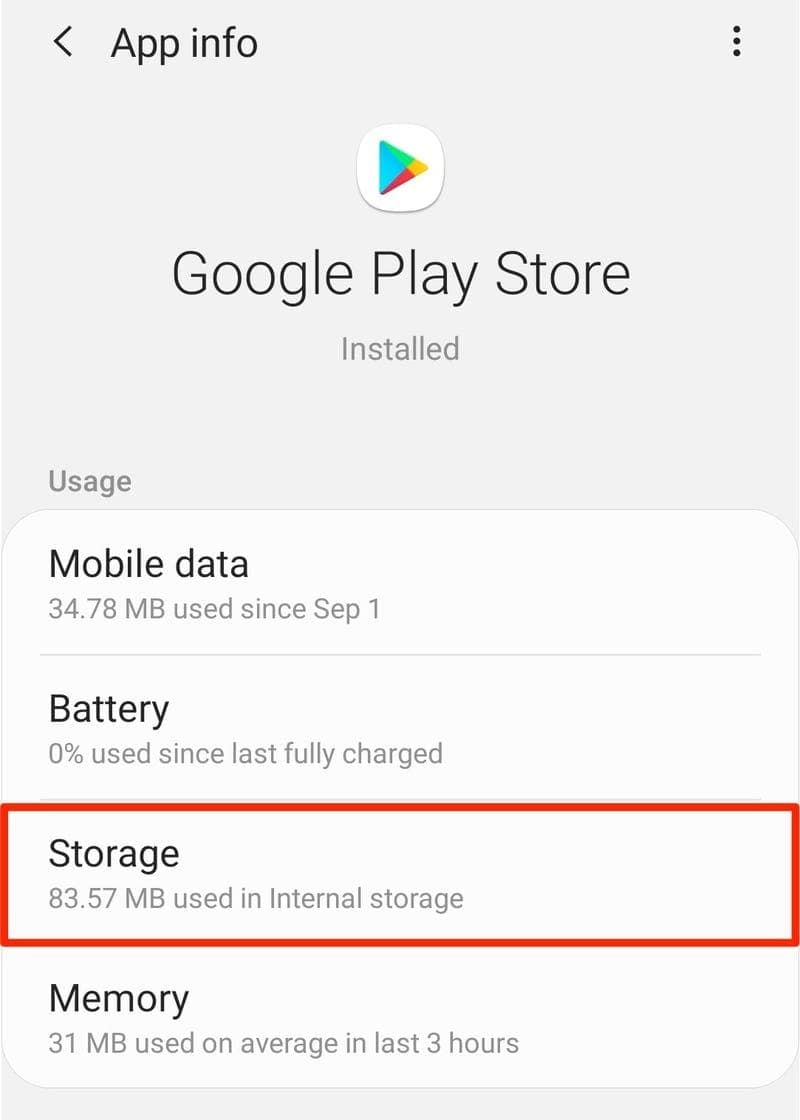
Basic Steps of Troubleshooting1. Clear Cache and Data:- Go to Settings > Apps > Play Store.- Tap on “Storage” then select “Clear Cache” followed by “Clear Data.”2. Reboot Your Device:- Restarting sort of clears off the temporary glitches that could well hamper applications’ performance.3. Internet Connection:- Make sure you are connected to a strong internet connection. Switch from Wi-Fi to mobile data and vice-versa.4. Remove and Re-add Your Google Account:- Go to Settings > Accounts > Google > Your Account > Remove Account.- Add it again from Accounts Settings, tap on “Add Account”.5. Update or Reinstall Updates for Play Store:- In Settings > Apps > Google Play Store, tap on “Uninstall updates” if available and again go to the “About” in the Setting within the app to check for updates.

Alternatives of Play Store
4.8
Let’s take a closer look at some of the popular Play Store alternatives.1. Aptoide- A community-driven marketplace boasting millions of apps, without any geo-restriction.- Users can upload their own apps with relative ease, promoting diversity in available content.2. Amazon Appstore- Provides a wide array of applications with strong developer support.- Commonly known for integrations involving Amazon devices such as Kindle Fire.3. APKPure- The app addresses a wide, varied provision of APK files directly to users for self-installation.- Very helpful in apps that are not published in your region or have restrictions via Google policy.4. F-Droid- Exclusively features open-source applications.- Ideal for users who value privacy and transparency in software development.

Get Google on your Devices
4.1
On Android Devices:Begin with launching the Google Play Store on your Android phone or tablet. Search for Google by typing “Google” into the search box. Otherwise, you can visit the same page directly from here https://play.google.com/store/apps/details?id=com.google.android.googlequicksearchbox. Now, click on the “Install” option once you’ve located it. Play Store will download the latest version currently available and install it on your device. Once it is completed, click “Open” in order to open the app. Update your device OS, and also check app permissions in an effort to allow voice search as well as detection of your locale for the best experience.On Apple Devices:From your iPad or iPhone, tap on the App Store icon and search for “Google” in the search bar. More conveniently, just go to the corresponding page from here https://apps.apple.com/us/app/google/id284815942. Tap the “Get” icon, then “Install” as prompted with your Apple ID, Face ID, or Touch ID. Google’s icon is on your home screen once it is installed. Tap on the app to get started on using its features such as voice search and content personalization.On PC:There is no Google app for computers, but you may use Google services in your web browser. Try launching a web browser like Chrome or Safari. Type in https://www.google.com in your address bar in order to visit Google search and other services.Additional Tips:After you install it, go through settings and enable features such as voice search, notifications, and settings for your personal feed. Look for additional features in app settings that allow you to customize your default search settings as well as your privacy. Update the app periodically for new features as well as for security updates

Google Visual Search
4.1
Using Google Lens on Android:1. Launch Google on your Android device2. Tap the camera icon in the search box (Google Lens)3. Position your camera in front of the object that you are trying to recognize4. Press the camera’s shutter button to capture the photograph5. Let Google scan the picture and display search results6. Scroll through the matches for your image search7. Click on any result for more informationAccessing Google Lens on an iPhone:1. Launch Google on your iPhone or iPad2. Tap on the camera icon beside the search bar3. Grant camera authorization if asked4. Look at your object via the camera5. Press the capture key6. Observe what Google shows for the object discovered7. Compare similar objects or related search outcomes

Keep Google Updated
4.1
For Android Users:Open the Play Store on Google and access the “My apps & games” page via the menu icon. Look for Google in the list of installed applications. If updated is available, you will see an “Update” icon beside the app. Tap on this icon and allow the update download and install automatically. For your convenience, you can enable automatic updating in the Play Store settings so your Google app is updated without your intervention.For iOS Users:Open your App Store on your iPhone or iPad and tap on your profile picture at top-right. Look for updates that are waiting to be installed. Look for Google and tap “Update” if you see it as an option, or “Update All” if you do not see it. Be on a secure Wi-Fi network in order not to be interrupted in between updating. After the update is complete, restart Google in order for the new features to be made accessible.On PC (Web Browser):No need for updates on those Google services accessed on the web, as they are in the cloud. However, keep your browser updated for optimal performance.
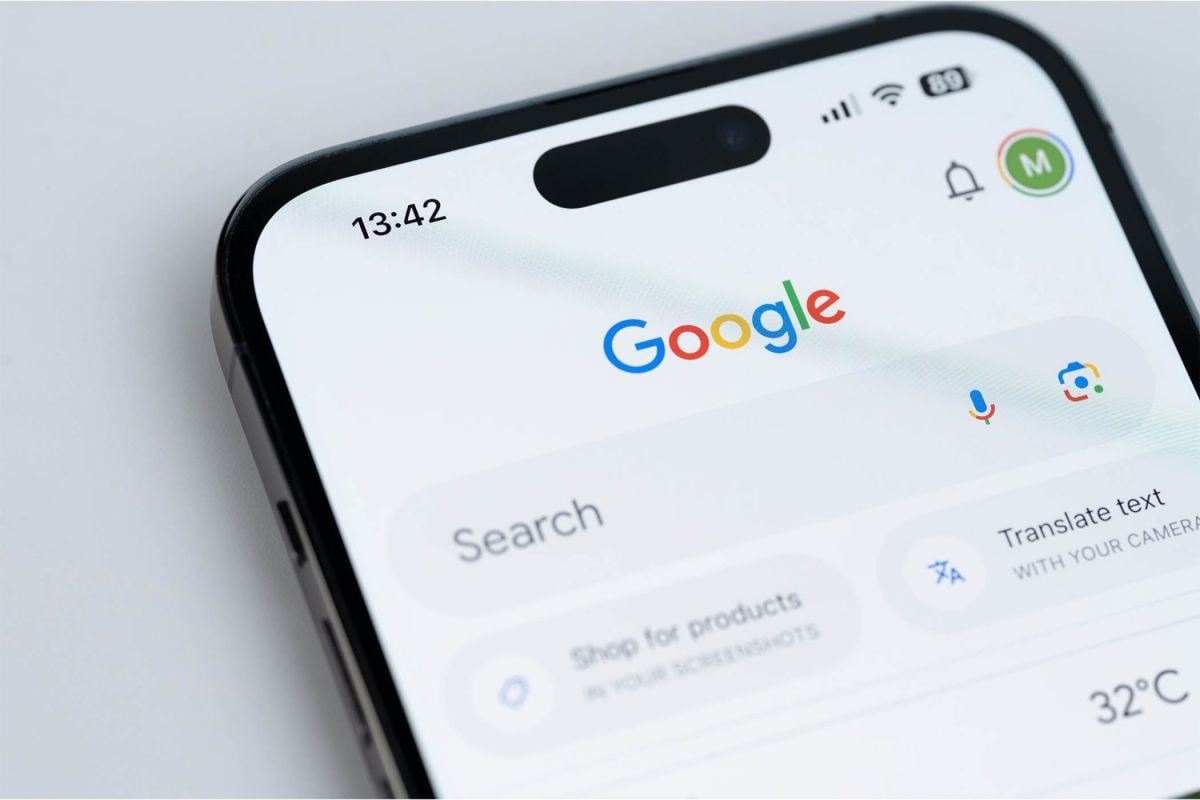

Protect Your Search Privacy
4.1
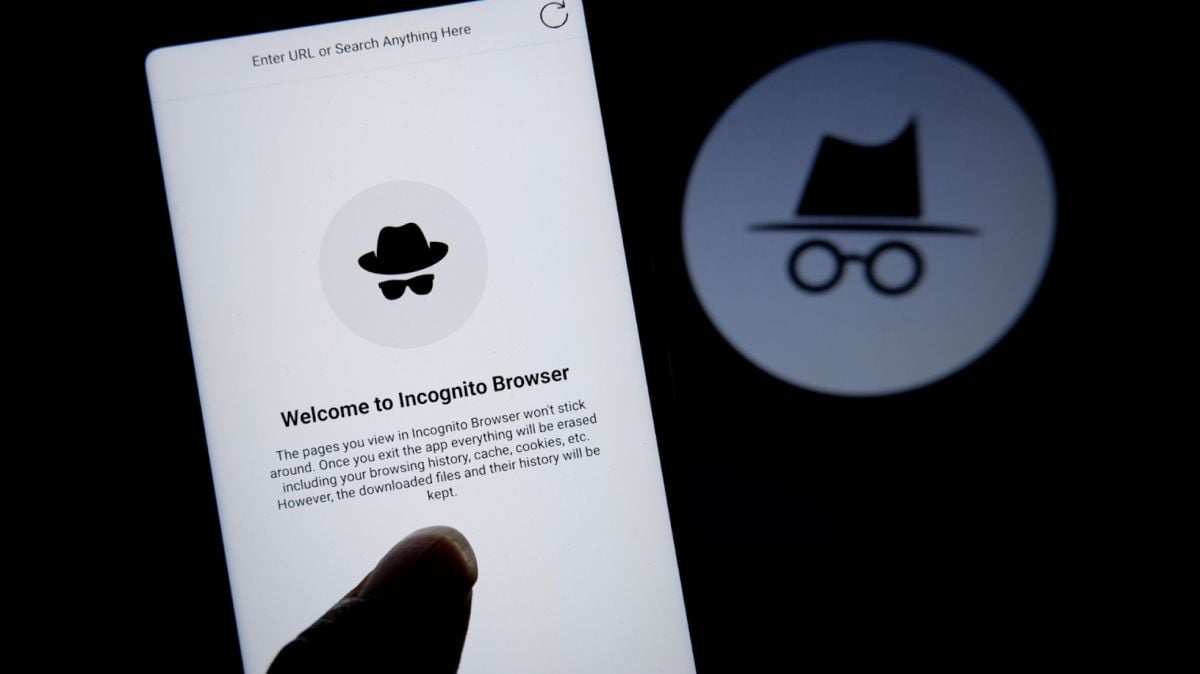
Managing Search History and Activity1. Launch Google2. Tap your profile picture in the top-right3. Click “Manage your Google Account”4. Go to the “Data & Privacy” page5. In the “History settings,” select “Web & App Activity”6. Turn off “Web & App Activity” so Google does not record your searches7. Or choose “Auto-delete” to delete activity older than some chosen timeframePrivate Searches with Incognito Mode1. Launch Google on your smartphone2. Tap your profile picture at the top right3. Choose “Turn on Incognito Mode”4. In Google Chrome browser, tap on three-dot menu and select “New Incognito Window”5. Conduct your searches without storing history in your account6. Close the tab or window in Incognito mode once completed7. Keep in mind that while Incognito blocks local history storage, your ISP knows what you are doing

Use Google for Homework Solution
4.1
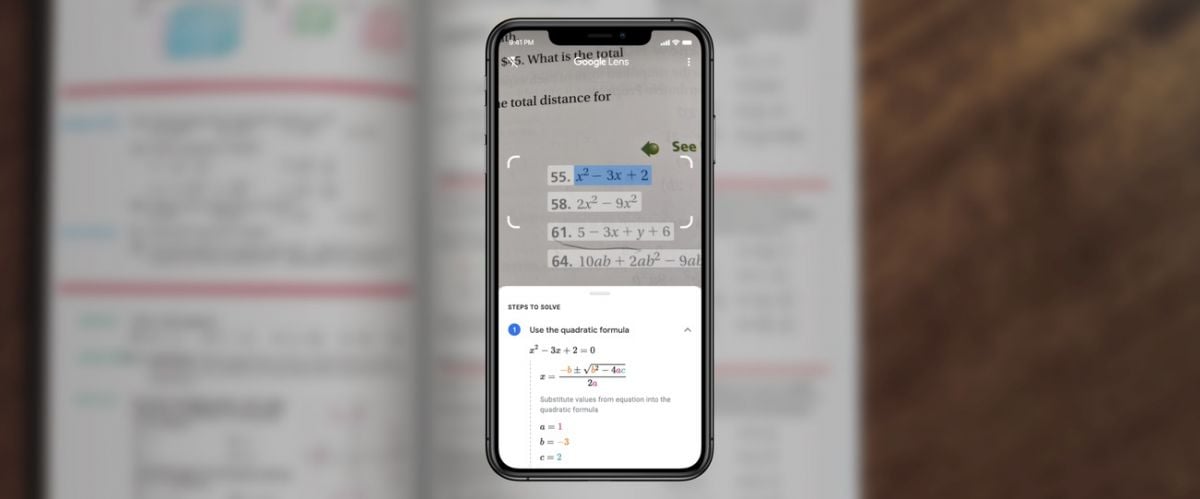
Step 1: Launch Google and Go to Google LensBegin by launching Google on your Android or iPhone. Look for the camera icon, Google Lens, normally displayed prominently in or beside the search bar. Tap on the icon in order to enter Google Lens mode. If prompted, grant the necessary permissions (such as camera and storage) for the app to photograph correctly.Step 2: Choose or Take the Homework ProblemAfter activating Google Lens, decide whether you want to take a new picture or use an old one. Ensure the picture taken is clear and the problem is fully visible and readable. If parts of the picture are unclear, retake the picture.Step 3: Highlight the Problem AreaAfter you’ve taken or selected the picture, Google Lens displays overlay options. Zoom in or drag the focus box on top of the specific area of the assignment that must be solved with your finger. It could be an advanced math problem, a diagram in your physics class, or even the text in your textbook. Selecting the exact area enhances recognition accuracy as well as analysis on the related content.Step 4: Retrieve and Analyze InformationOnce you’ve underlined the area of concern, tap the “Identify” or “Search” icon. Google Lens scans the picture and displays a list of possibilities for you. Carefully read the options displayed. If numerous answers are listed, scroll down to the most appropriate answer. You can even tap on particular answers for additional description, usually linked with reputable academic websites or other digital texts.