2025 Apps - Free Download & Official Reviews

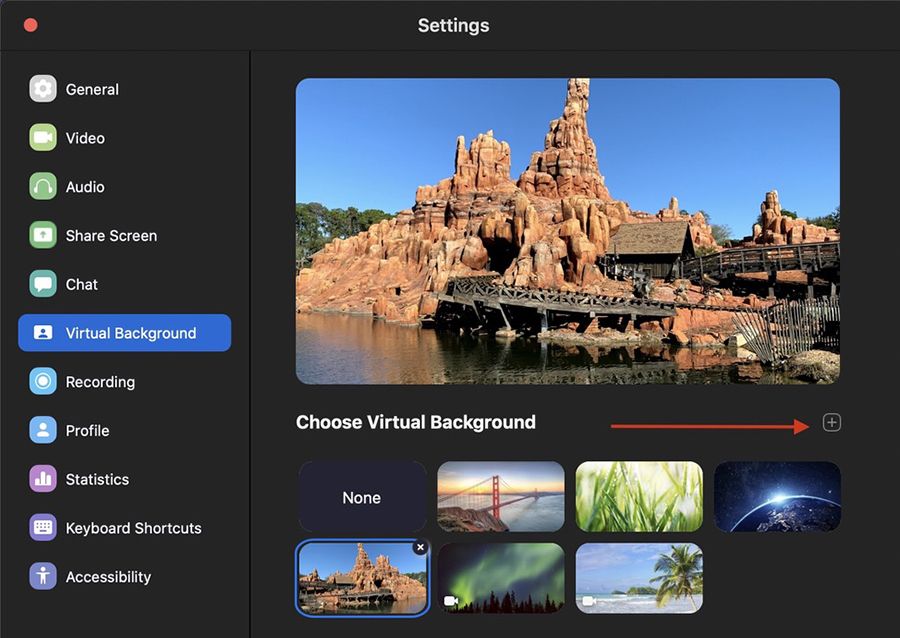
Set Up Virtual Backgrounds in Zoom Meetings
 4.7
4.7
How to Set a Virtual Background for Zoom Meeting1. Open Zoom Settings:- Log in to Zoom, click on Settings (gear icon), then select Virtual Background.2. Choose or Add a Background:- Select a background from Zoom’s default options, or click + to upload your own image.- Ensure good lighting conditions for optimal performance of virtual backgrounds; avoid busy patterns in clothing as they may interfere with background effects.3. Adjust for Best Results:- Sit in the middle of the camera frame and use a solid background as well as good light if possible, and enable I have a green screen if you have one.- Use the “Mirror My Video” option to see what others will see and make some adjustments if needed.

Keep Zoom Up-to-Date
4.7
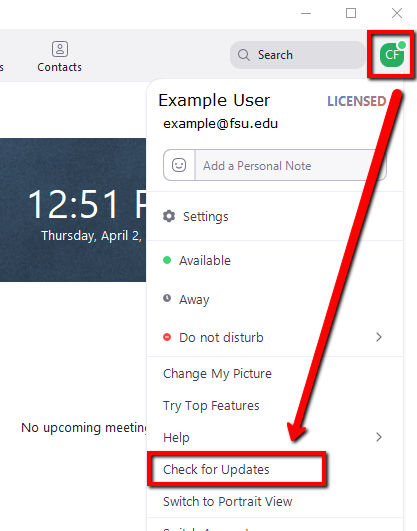
Regular updates can enhance your Zoom experience and help you avoid potential issues. Here’s a guide on how and when to update Zoom.1. Check for Updates Manually:- Open Zoom desktop client.- Click on your profile picture in the top right corner.- Select “Check for Updates.” If an update is available, follow prompts to download it.2. Automatic Updates: - In settings under “General,” check “Automatically keep my client up to date.” This ensures that updates are applied without manual intervention.3. Mobile Updates: - For mobile users, visit Google Play Store (Android) or App Store (iOS). Search for “Zoom” and tap “Update” if available.4. When to Update:- Regularly check for updates at least once a month or whenever notified by the application about new updates available.- Update before important meetings or events where new features might enhance functionality or security.

Download Telegram Easily
4.0
Detail Installation Steps1. Android Devices:- Open the Google Play Store. In the search box, input “Telegram.”- Tap the one from Telegram FZ-LLC, then tap “Install.” More simply, you can just visit here to view the same page https://play.google.com/store/apps/details?id=org.telegram.messenger&hl=en_US.- Download and install the app. Open the app once downloaded and register your account using your phone number.2. Apple Devices iPhone/iPad:- On your Apple device, launch the App Store and search for “Telegram.”- Tap “Get,” then “Install” when prompted. Alternatively, get to the downloading page simply from here https://apps.apple.com/us/app/telegram-messenger/id686449807.- Install from the store and open it: in-app, register your phone number and start using Telegram.3. Desktop Version (Windows/Mac):- Go to the official Telegram website https://desktop.telegram.organd download the desktop application for your operating system.- Follow the installation prompts, then open Telegram.- Link it now with your mobile account, either by scanning the QR code or by typing your phone number.4. Web Version:- Alternatively, Telegram has a Web version for those who do not want to install anything. In a browser, just go to its official homepage https://web.telegram.org/k/, insert your phone number and access your account.

What Can You Do with Telegram
4.0
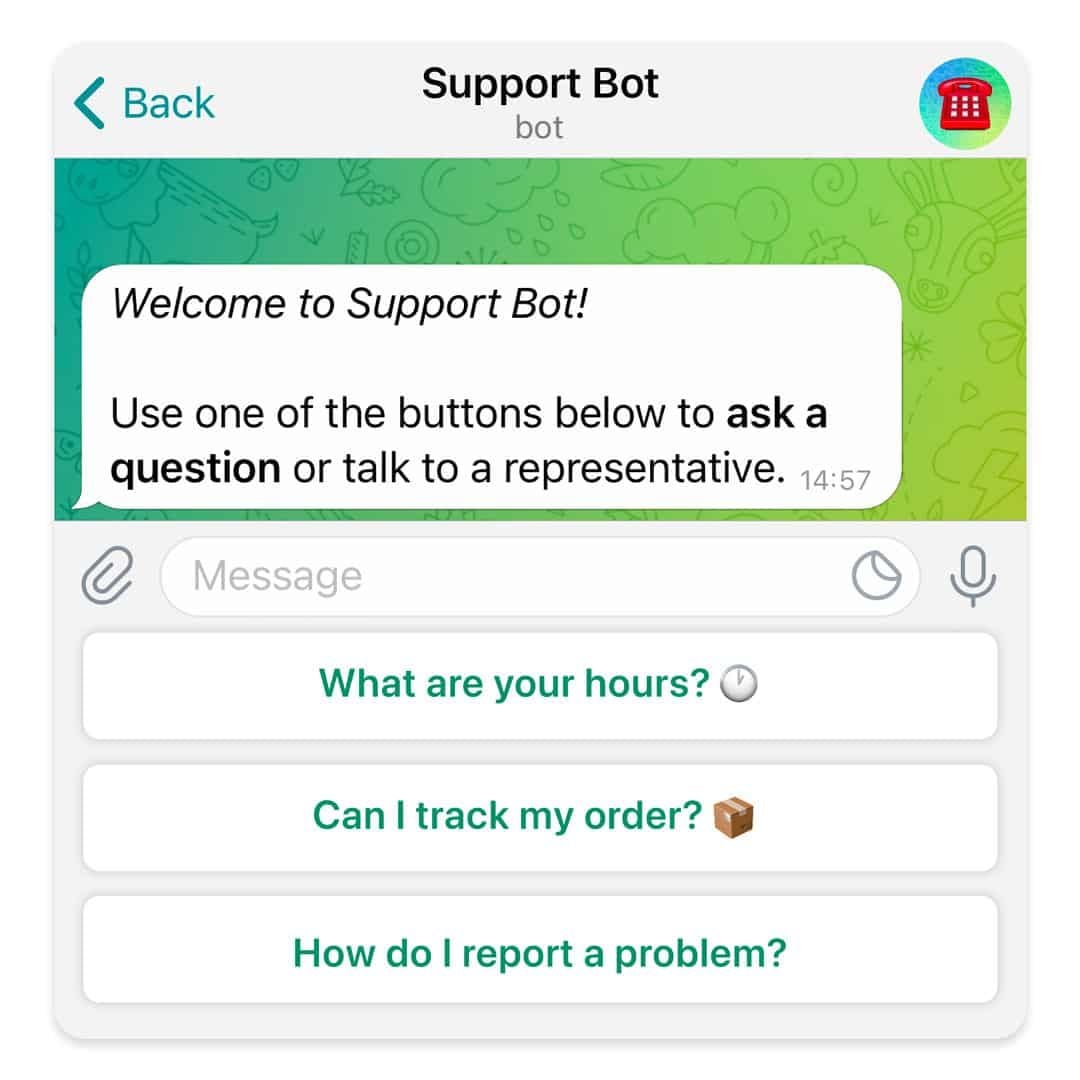
What Telegram Allows You to Do1. Secret Chats:- Besides basics, for additional security, Telegram provides “secret chats” that are end-to-end encrypted and even self-destruct on expiration.- The messages of Secret Chats also cannot be forwarded, further giving control over the information shared.2. Cloud-Based Messaging with Unlimited Storage:- Telegram is cloud-based: your messages and files are stored in the cloud; therefore, you can view them from any device without occupying any local storage.3. Sharing Large Files:Telegram allows you to share large files (up to 2 GB) in one go, a unique feature compared to other messaging apps that restrict file size.4. Bot and Personalization- Telegram provides an excellent bot platform through which users can perform actions, access information, and even play games.- You will be able to find all kinds of bots, from those that will help one with the weather forecast, translation, or news updates.5. Channels and Groups:- Telegram allows for groups of up to 200,000 people and channels allow one-way broadcasting; thus, it’s good to put out some of your messages.

Create Your Channel in Telegram
4.0
Telegram makes it easy to create a channel, and it provides additional features for managing and growing your audience. Here’s how to set up your own Telegram channel.1. Open Telegram and click the menu icon: three horizontal lines.2. Among the options appearing, click New Channel.3. Name your channel, and an optional description for the purpose can be given.4. Decide if you want the channel to be public, where everyone can find it, or a private one, where only invited members will join.5. If public, send the link so it’s easy to join; if private, share invite links only with invited individuals.6. Having made all your preferences in the channel, tap Create and optionally add members.


Customize Telegram Themes & Notification
4.0
Here is a simple tutorial on how to personalize these features in Telegram.Creating Custom ThemesFor Desktop:1. Open Telegram Desktop and click on Settings.2. Click on Chat settings, then select Create New Theme.3. Name your theme then choose the color of the text, background, and button.4. Click Save Theme once your theme is to your liking.For mobile:1. Enter Telegram from your mobile device: Now, go to Settings > Chat Settings/Appearance.2. Click the Theme then select Create New Theme.3. Give your theme a name and adjust the colors to your liking.4. Tap the upper-right corner to save your changes.Setting Custom Notification Sounds1. Open Telegram chat.2. Click the top-left thumbnail of your profile picture.3. Tap on Notifications, then Customize.4. Select your sound of choice, browse through the provided options, or upload your own.

Telegram’s Safety Features
4.0
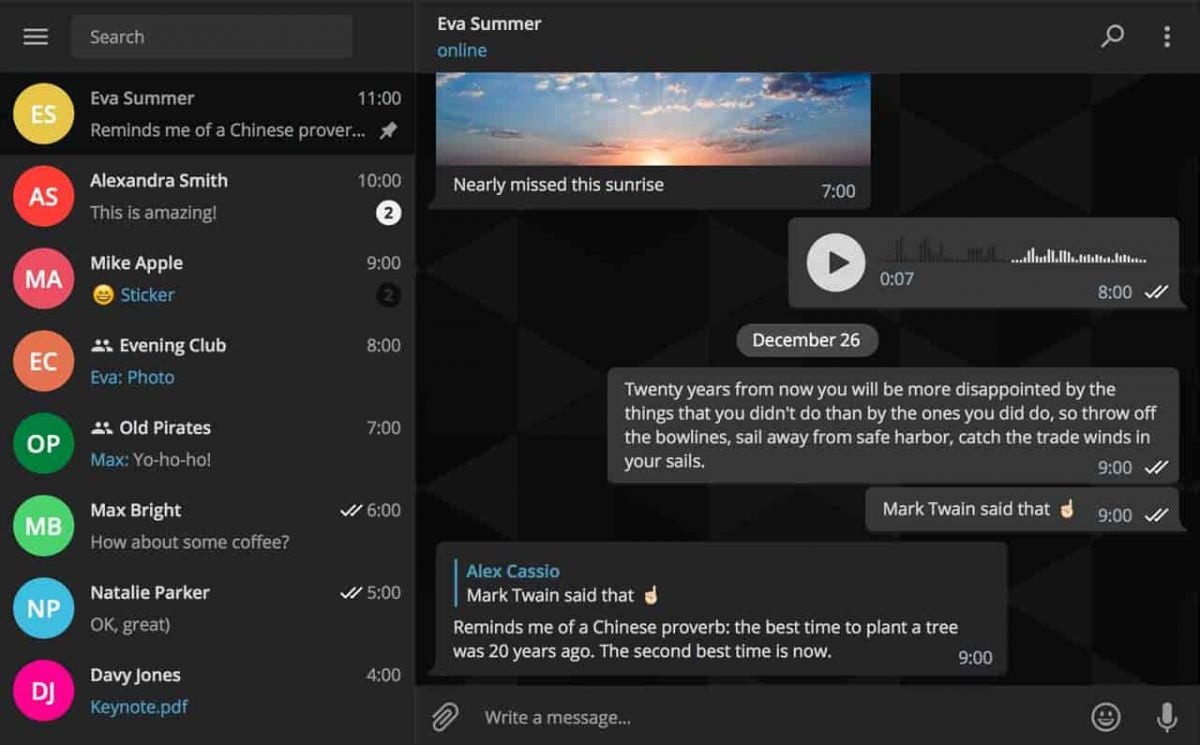
1. Enable Two-Step Verification:- For the extra layer of security, one can enable a password via Settings > Privacy and Security > Two-Step Verification.- This will prevent unauthorized use, even if anyone else knows your telephone number.2. Sending Private Messages via Secret Chats:- Secret Chats use end-to-end encryption, including self-destruct timers, which is great for sensitive information.- They never reach Telegram’s servers and therefore never leave your device.3. Control Who Can Contact You:- In Settings > Privacy and Security, select who can view your profile photo, your last seen, and phone number.- You can block contacts, manage messages coming from strangers, and you can limit this for unnecessary conversations.4. Self-Destruct Media in Regular Chats:- Open any chat, tap the clock icon while sending a photo or video. After setting the self-destruct timer for media to disappear once viewed.

Download No Cost Play Store
4.8
How to Get ItFor Android Devices1. Pre-installed Access: Many Android devices come pre-installed with Play Store. You just open the app and sign in using a Google account to get started.2. Manual Installation: If the application isn’t available, download the APK file from a trusted source. After that, go into Settings > Security > Unknown Sources, and click the toggle to enable installation of third-party apps not on Play Store. Then, open the installed APK file.For PCsWeb Access: Fire up any browser and head to Play Store’s official address, http://play.google.com, where you can log in and then remotely manage apps as well as send downloads to connected devices.For iOS DevicesSadly, Play Store is not natively available for iOS because Apple has its own App Store. But yes, you can access a few Google services by downloading separate Google apps from the App Store.Exclusive Features Play Store Offers1. Google Play Protect: This feature scans apps for malware and harmful behavior, keeping the users safe.2. Library: Sharing bought applications with family.3. Personalized Recommendations: The store suggests applications based on users’ preferences and previous downloads.

Update Play Store
4.8
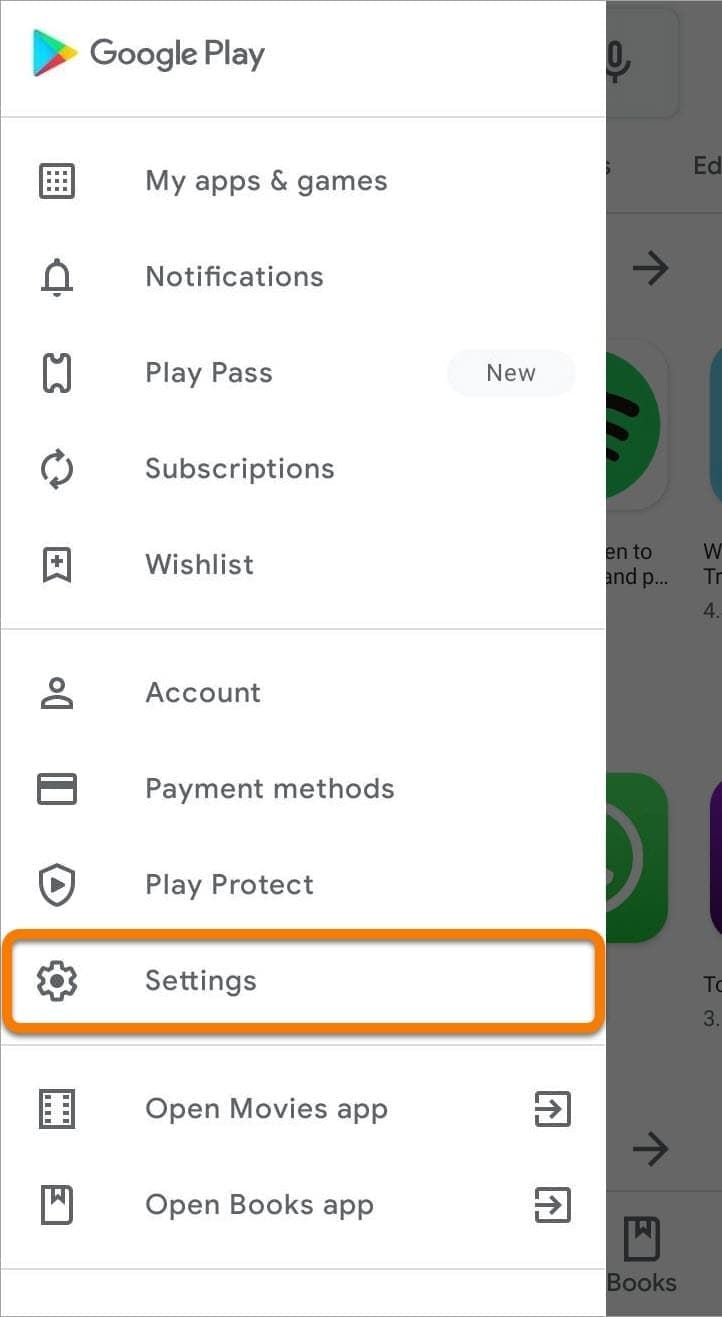
Where to Find Your Play Store Version1. Click Play Store icon on your device.2. Tap your profile picture in the top right, followed by “Settings.”3. Scroll to “About,” where your current version will be listed under “Play Store version.”How to Update Your Play Store1. Open the app.2. Tap your profile picture once more, followed by “Settings.”3. Under “About,” tap “Update Play Store.” If there’s an update available, it will start downloading and then install automatically.4. If you are already updated, it will say so in a message that your Play Store is current.Manual Update Using APK1. Download the latest Play Store APK from a well-trusted site, if you cannot update automatically.2. Go to Settings > Security > Unknown Sources, enable it.3. Download and install this APK to manually update your Play Store.

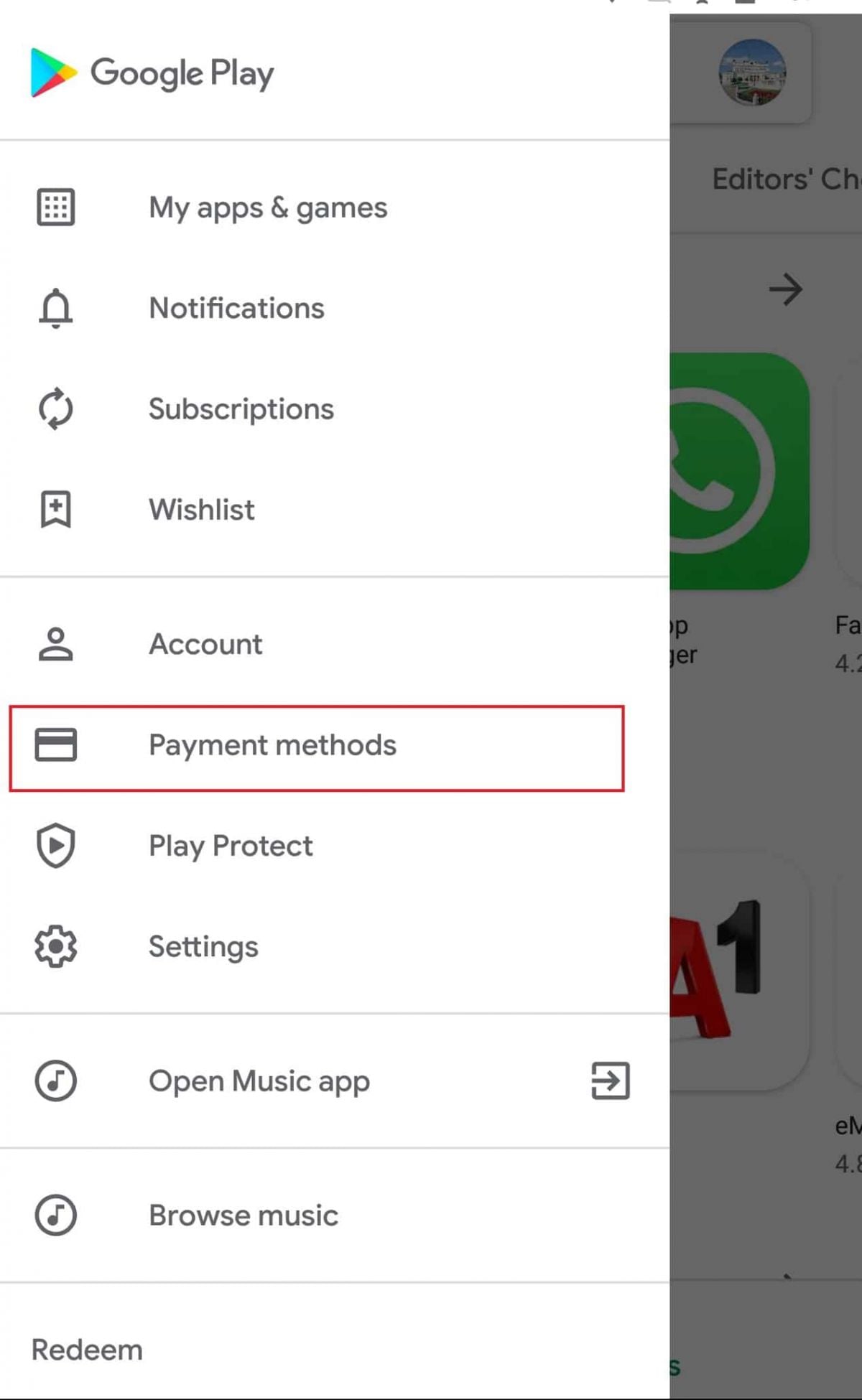
Make and Manage Payment in Play Store
4.8
How to Make Purchases1. Open the application from the home screen of your device.2. You can search using the search bar or browse through categories.3. Tap the app or game you want to purchase.4. Tap the price button of corresponding app examples include “Buy” or “Install.”5. If prompted, select a payment method or add a new one.6. If prompted, follow any additional on-screen instructions to complete your purchase.Managing Payment Methods1. Open Play Store Settings by tapping your profile icon.2. Tap Payments & Subscriptions then select Payment Methods.3. Now you can add, remove, or update payment methods such as credit cards or PayPal to control how you pay.Removing Payment Methods in DetailTo remove a payment method from an account, follow these steps:1. Open the app.2. Tap your profile icon, located in the upper-right corner.3. Tap “Payments & Subscriptions,” then tap “Payment Methods.”4. Scroll down, and tap “More Payment Settings” that opens in a web browser5. Find the source of payment you wish to remove and tap “Remove.”