


Hot App Reviews - Best Free Apps Download & Guides

Install Instagram at No-Cost
WhatsApp Setup

Download and Install YouTube

Download Zoom Easily
 4.7
4.7
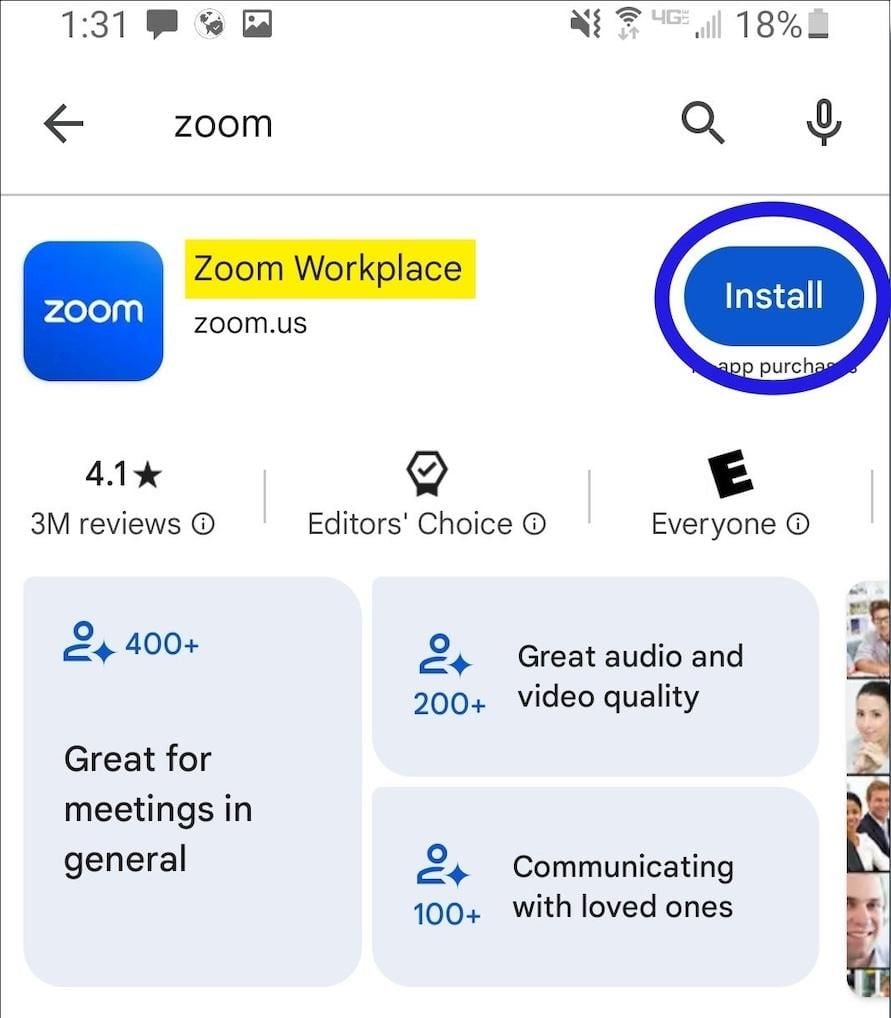
How to Install Zoom on Various DevicesFor Computer Systems (Windows and Mac):1. Open any browser and go to its official website herehttps://zoom.us/download.2. Click the blue “Download” button.3. Once downloaded, look for the installation file for Windows (ZoomInstaller.exe), or the .pkg file on Mac – in your downloads folder. Run the installer by double clicking, then follow the instruction on screen.4. If it requests any permissions, accept them through your operating system.For Mobile Android and iOS- Android:1. Open the Google Play Store.2. In the search box, type “Zoom Workplace” or install directly from here https://play.google.com/store/apps/details?id=us.zoom.videomeetings&hl=en_US.3. Click “Install” and wait for it to download.- iOS:1. Open the Apple App Store.2. Search for “Zoom Workplace”, or access it directly from here https://apps.apple.com/us/app/zoom-workplace/id546505307.3. Tap “Get” to download and install the application.Once installed, you can open Zoom and either log in or create an account.
Get Canva on Your Device in Minutes
4.6
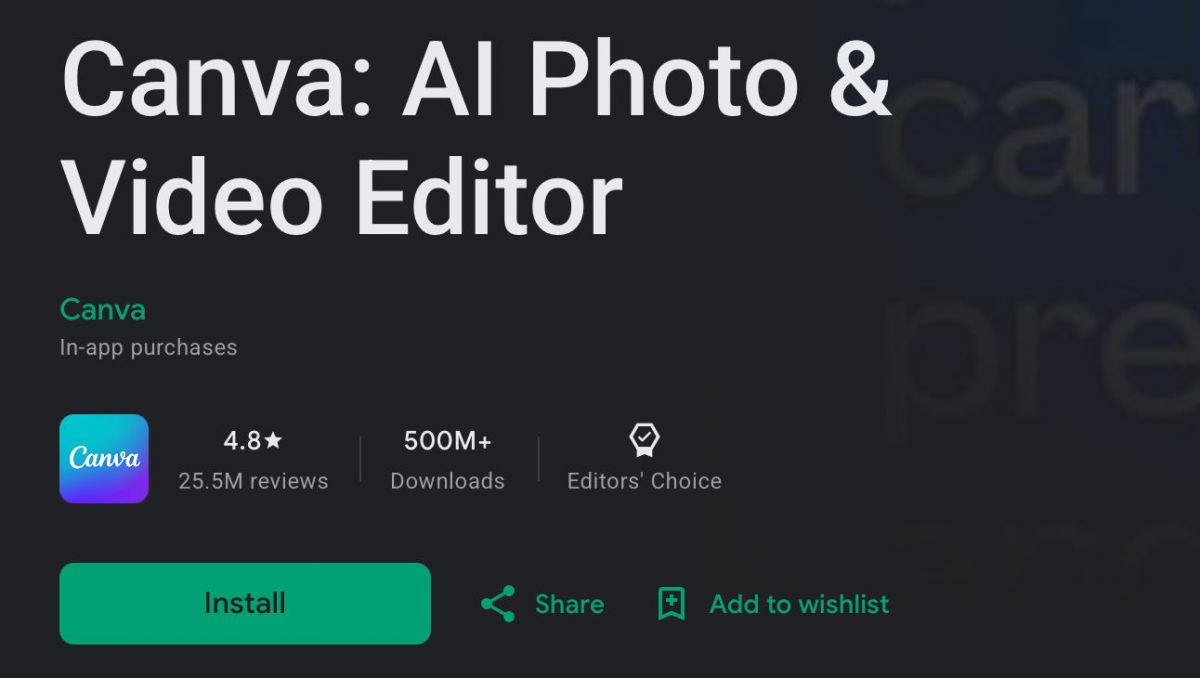
iOS (iPhone & iPad):- Open the App Store on your iPhone or iPad- Tap the Search icon at the bottom of the screen, then type “Canva” into the search bar- Choose the official Canva app- Hit Get (or tap the cloud icon if you already downloaded it before), then confirm with Face ID, Touch ID, or your Apple ID password- When it finishes downloading tap Open to get in, then sign up using your Apple ID, Google account, or email address- Allow Canva access to your photo library when you’re prompted. That helps you drop images directly into your designsAndroid (Smartphones & Tablets):- Open the Google Play Store on your Android device- Tap the search bar at the top and type “Canva” to see the results- Select the official Canva listing- Tap Install and wait while it downloads and sets itself up- Tap Open after installation, then create a new account or sign in using Google account, Facebook, or email- When asked, allow storage and media access so you can use more of the app’s features right away
How to Update CNN like Clockwork
4.5
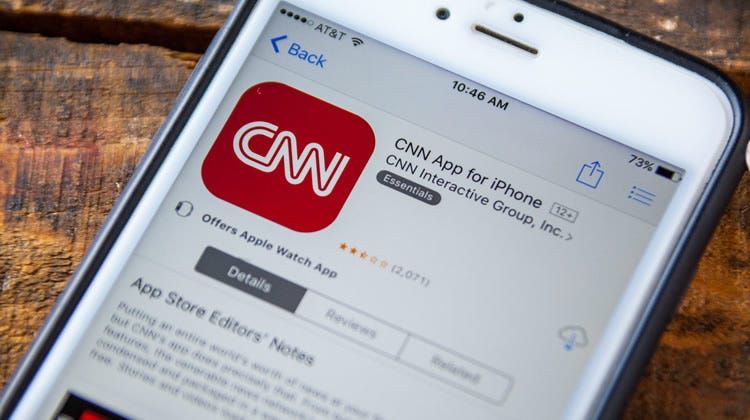
Updating on iOS:- Open the App Store and tap your profile picture in the top-right corner of the screen.- Scroll down to the Available Updates section and check whether CNN appears in the list.- Tap Update next to CNN to install the latest version, or tap Update All to refresh all pending apps simultaneously.- To automate future updates, go to Settings > App Store on your device and enable the App Updates toggle — iOS will then update CNN silently in the background whenever a new version is available.- If CNN does not appear in the update list but you suspect a newer version exists, pull down on the Available Updates screen to force a manual refresh of the update cache.Updating on Android:- Open the Google Play Store and tap your profile icon in the top-right corner of the screen.- Select Manage apps & device, then tap Updates available to view all pending app updates.- Locate CNN in the list and tap Update, or select Update All to update all apps at once.- To enable automatic updates specifically for CNN, navigate to the CNN page in the Play Store, tap the three-dot menu in the top-right corner, and select Enable auto update.- Connect to Wi-Fi before updating if you are on a limited mobile data plan — app updates can consume meaningful data, particularly for feature-rich updates.
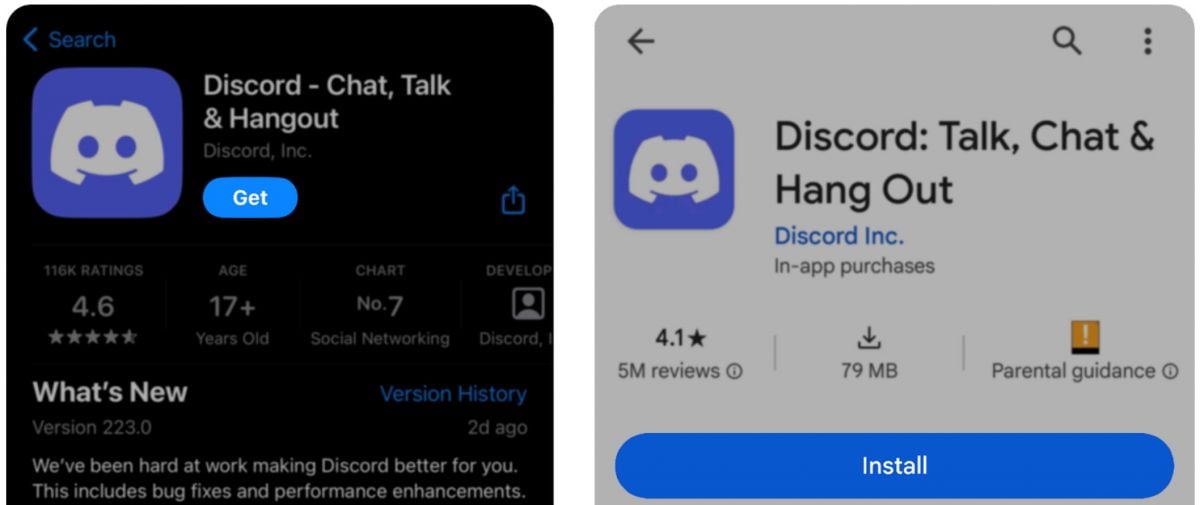
Install Discord on Your Device
4.7
For Android:- Open the Google Play Store on your Android device.- Tap the search bar at the top and type "Discord."- Choose the official Discord app from the results, and confirm it is published by Discord Inc. so you do not end up with some unofficial copy.- Hit Install and let the download finish.- After it installs, tap Open from the Play Store, or use the Discord icon on your home screen or in the app drawer.- On the welcome screen, pick Register for a fresh account, or Log In if you already made one.- Enter your username, email, and password. Accept the terms of service and confirm your age.- Complete the email verification step sent to your inbox.- If you want more security, set up two-factor authentication (2FA) in User Settings.- Your account is ready to go on Android, and you are set.Both iOS and Android versions are no-cost to download, and they have basically the same core features. Discord also works on tablets, and you can use it across multiple devices at the same time so your messages stay synced, without you thinking about it too much.