Hot App Reviews - Best Free Apps Download & Guides

Install Instagram at No-Cost

WhatsApp Setup

Download and Install YouTube

Install Temu for Free
 4.4
4.4
Temu Mobile Installation1. For Android Devices:- Open the Google Play Store.- Type “Temu” in the search bar and press enter. Or you can simply go ahead from https://play.google.com/store/apps/details?id=com.einnovation.temu&hl=en_UShere, which will lead you to the destination directly.- Locate Temu and tap the “Install” icon.- Once installed, tap “Open” to launch the application.2. For iOS Devices:- Go to App Store.- Search for “Temu” in the search bar and press enter. Alternatively, you can simply visit https://apps.apple.com/us/app/temu-shop-like-a-billionaire/id1641486558here, which will direct you to the page.- Temu will appear; beside it, the “Get” button is present- tap on it to download.- After the download, tap the “Open” button to access it.Temu Installation on PC1. Open any browser and enter Temu’s official website https://www.temu.comfrom here.2. If there is any desktop version available, download that; otherwise, if the browser interface provides almost the same experience, then use that.3. If a desktop download is available, then follow on-screen instructions.


Keep Zoom Up-to-Date
4.7
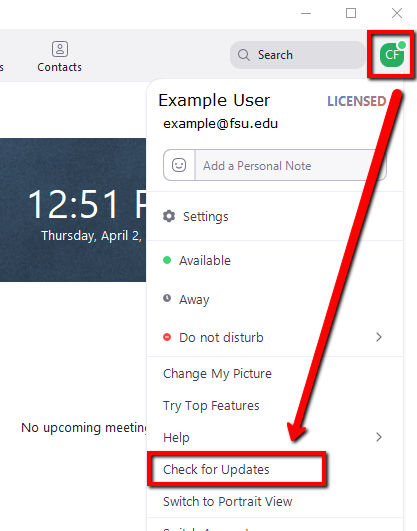
Regular updates can enhance your Zoom experience and help you avoid potential issues. Here’s a guide on how and when to update Zoom.1. Check for Updates Manually:- Open Zoom desktop client.- Click on your profile picture in the top right corner.- Select “Check for Updates.” If an update is available, follow prompts to download it.2. Automatic Updates: - In settings under “General,” check “Automatically keep my client up to date.” This ensures that updates are applied without manual intervention.3. Mobile Updates: - For mobile users, visit Google Play Store (Android) or App Store (iOS). Search for “Zoom” and tap “Update” if available.4. When to Update:- Regularly check for updates at least once a month or whenever notified by the application about new updates available.- Update before important meetings or events where new features might enhance functionality or security.

Customize Telegram Themes & Notification
4.0
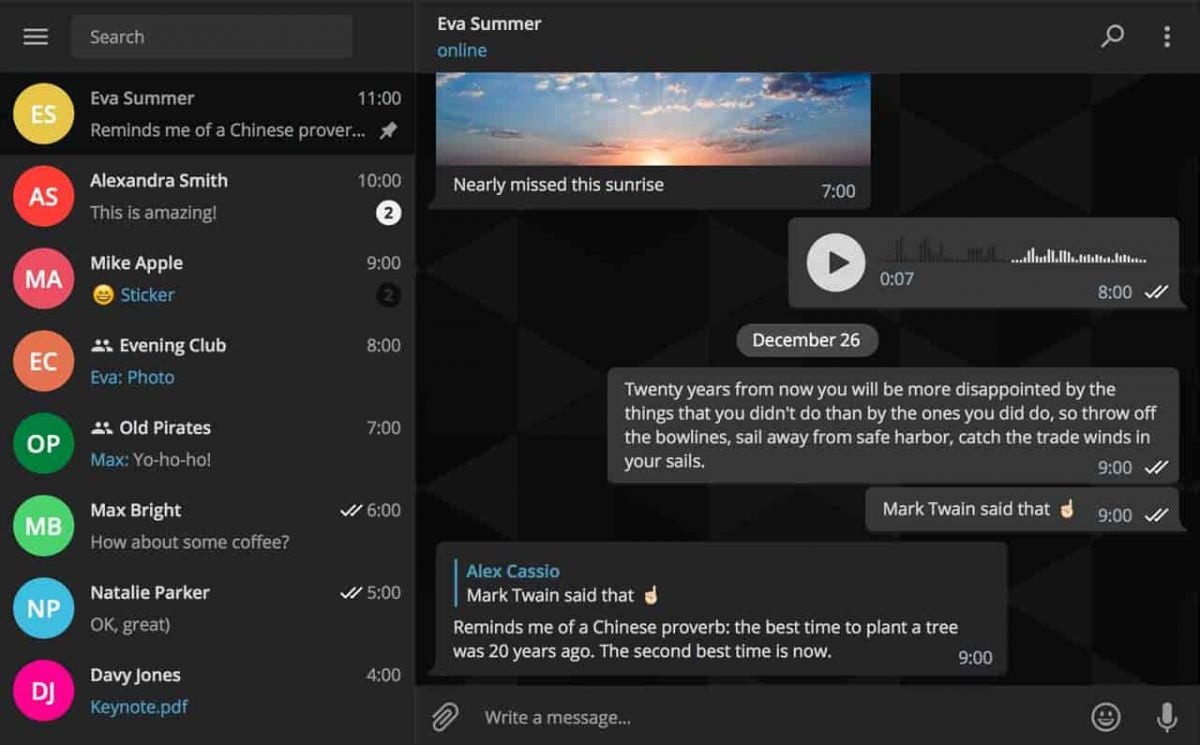
Here is a simple tutorial on how to personalize these features in Telegram.Creating Custom ThemesFor Desktop:1. Open Telegram Desktop and click on Settings.2. Click on Chat settings, then select Create New Theme.3. Name your theme then choose the color of the text, background, and button.4. Click Save Theme once your theme is to your liking.For mobile:1. Enter Telegram from your mobile device: Now, go to Settings > Chat Settings/Appearance.2. Click the Theme then select Create New Theme.3. Give your theme a name and adjust the colors to your liking.4. Tap the upper-right corner to save your changes.Setting Custom Notification Sounds1. Open Telegram chat.2. Click the top-left thumbnail of your profile picture.3. Tap on Notifications, then Customize.4. Select your sound of choice, browse through the provided options, or upload your own.

Update Play Store
4.8
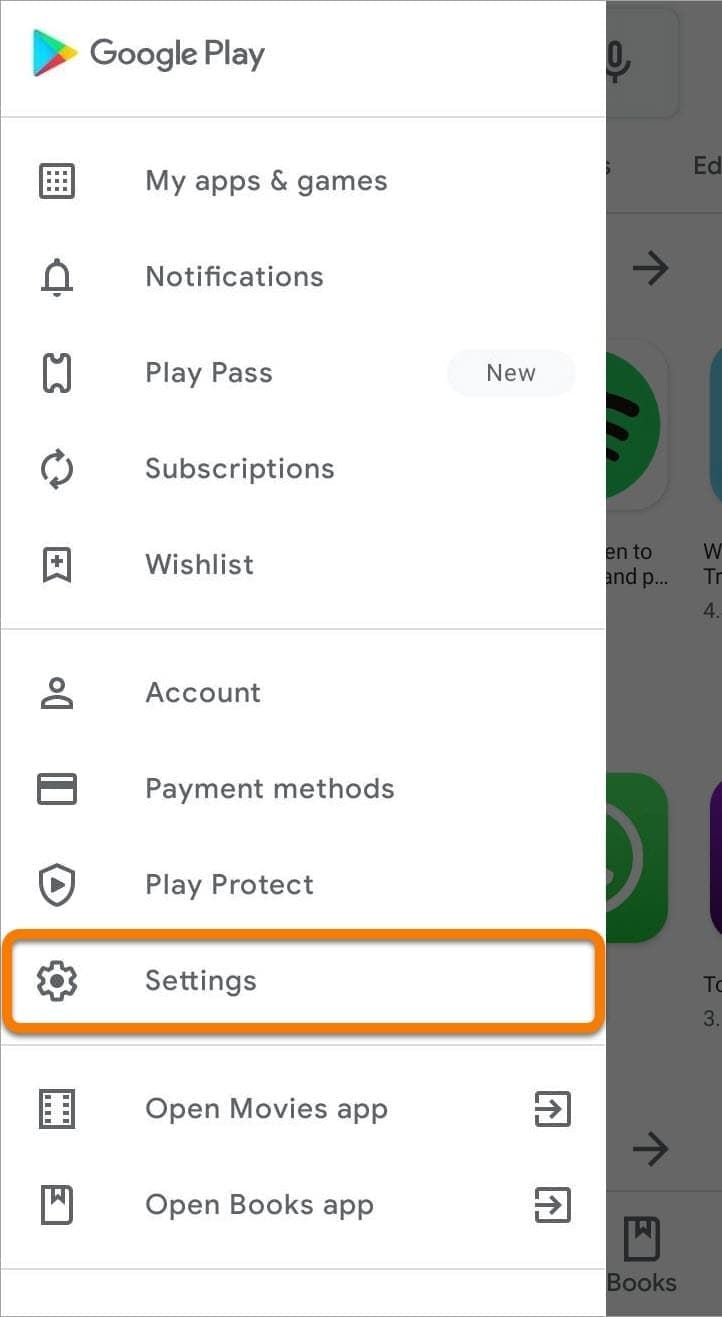
Where to Find Your Play Store Version1. Click Play Store icon on your device.2. Tap your profile picture in the top right, followed by “Settings.”3. Scroll to “About,” where your current version will be listed under “Play Store version.”How to Update Your Play Store1. Open the app.2. Tap your profile picture once more, followed by “Settings.”3. Under “About,” tap “Update Play Store.” If there’s an update available, it will start downloading and then install automatically.4. If you are already updated, it will say so in a message that your Play Store is current.Manual Update Using APK1. Download the latest Play Store APK from a well-trusted site, if you cannot update automatically.2. Go to Settings > Security > Unknown Sources, enable it.3. Download and install this APK to manually update your Play Store.

Install Amazon Shopping
4.8
For PC Users:1. Go to the Amazon official website from here https://www.amazon.com.2. If necessary, create an account or sign in.3. All features are directly available on the website, so there is no need to download an application.

Top 5 Competitors of Walmart
4.8
1. Amazon is Walmart’s most formidable competitor, with a leading position in online retail through product assortment and its popular loyalty program, Prime. The service excels at providing lightening speed delivery options, reputable product reviews, and low-price options. Further, its robust recommendation engine and seamless digital experience, bolstered by services such as Prime Video and Music, facilitate an all-inclusive ecosystem that is nothing short of sticky.2. Target positions itself as more upmarket, emphasizing style and quality while keeping prices competitive. Its differentiation lies in exclusive designer collaborations, fashion-forward private labels, and an overall nicer shopping experience. Target’s Circle rewards program and emphasis on digital integration via its app have better positioned the company, especially for middle-income consumers.3. Costco executes its business model well within membership-based wholesale, using bulk pricing for premium products. With a much smaller number of locations than Walmart, it maintains customer loyalty with its premium products, excellent return policies, and strong private labels such as Kirkland Signature. Among its member values is the consistent quality and a treasure hunt to shop.4. Kroger is at an edge among grocers, pushing back against Walmart’s supermarket dominance, by using its broad network of grocery stores, its digital integration through Kroger Plus, and a focus on fresh products and private labels. Its investment in technology and online grocery services has been one of the reasons for its strengthened competitive positioning.5. Temu, a rapidly growing online newcomer, tries to fight Walmart on price in almost every category imaginable. Backed by PDD Holdings, Temu has been snatching up market share thanks to aggressive marketing, steep discounts, and an array of items directly from manufacturers. Its platform is certainly aimed at the price-conscious consumer, promising to let users “Shop like a billionaire” with frequent promotional offers.

Apply for Cash Back Credit Cards
4.9
Steps to Apply for Cash Back Credit Cards:1. Launch Citi Mobile and log in.2. Click “Credit Cards.”.3. Scroll through the list of cards available and filter it using “Cash Back”.4. Select your desired card and click on “Apply Now.”5. Fill in your personal and financial information.6. Upload identification and proof of income documents as needed.7. Go through the terms and submit your application.8. Track status in the “My Applications” tab.Benefits for Cash-Back Cards1. Avail cash rebates when making purchases.2. Avail deals and discounts exclusively.3. Pay bills with ease using Citi Mobile.4. Real-time reward points and their redemption.

Add Vehicles to Your Account
4.5
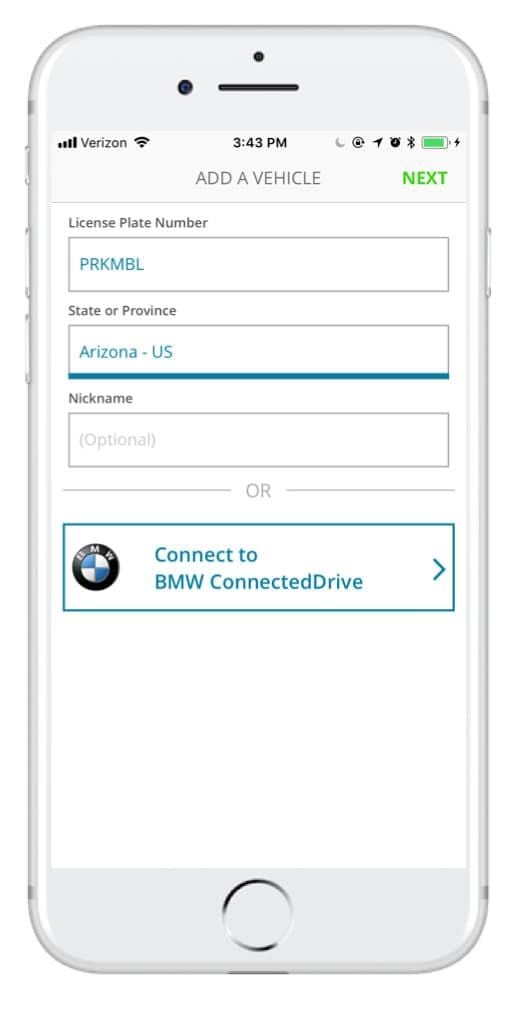
How to Add Vehicles1. Access via App or Website: Access ParkMobile from your smartphone or visit parkmobile.io from your computer.2. Settings Menu: Tap your profile icon to open settings in-app or tap “Account Settings” if you use the website.3. Vehicles Section: Tap on “Vehicles”-you see listed any entries, along with an option to add new.4. Add New Vehicle:- Tap “Add New” or click the “+” button next to existing vehicles.- Fill in any of the required information: license plate number, state of registration, and nickname.5. Save Changes: After entering all of the information, tap “Save” or “Add Vehicle.” Do this for multiple vehicles per account, up to five per account.6. Default Vehicle - Optional: You might want to select a default vehicle. That way, each time you go to make a reservation, the system will default to this vehicle unless changed by you.

Download PayByPhone
4.5
Steps for Android Devices:Android phones or tablets:1. Navigate to the Play Store app on an Android based phone or tablet device that you are using.2. In the search bar, enter PayByPhone. Even more conveniently, visit the downloading page from here directly https://play.google.com/store/apps/details?id=com.paybyphone&hl=en_US.3. Click the app and click “Install.”4. Let it install and open completely.Steps for iOS Devices (iPhone/iPad):1. Open the Apple App Store using your device.2. In the search field, type “PayByPhone Parking.” More straightforwardly, navigate the same result from here https://apps.apple.com/us/app/paybyphone-parking/id448474183.3. Tap “Get” and authenticate if required.4. Allow it to download and install, then launch the application.Steps for PC/Mac Users:1. Open your web browser and go to www.paybyphone.com.2. In the top-right corner, select either “Sign Up” or “Log In.”3. Continue through the prompts to either sign up or recover your stored credentials.4. Bookmark this page for future quick access.You will be asked to make an account afterward with your e-mail address, mobile number, and vehicle information.

Activate PayPal Account
4.6
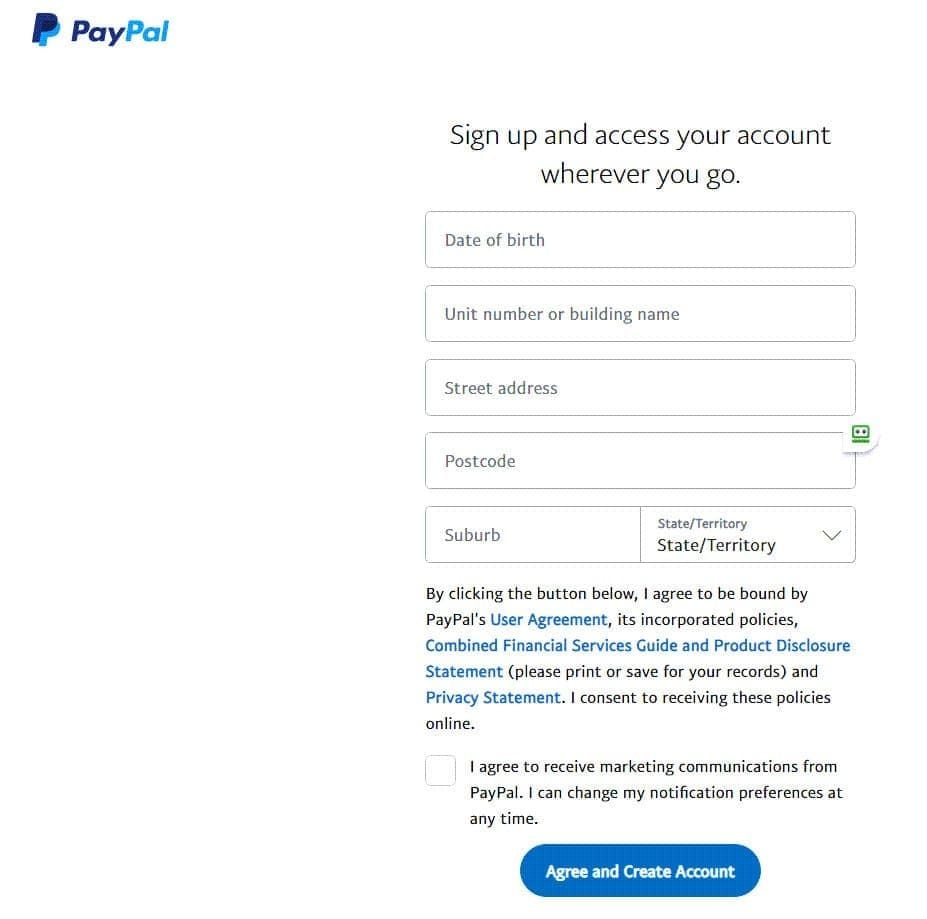
Steps to Create a PayPal Account:1. Visit PayPal Website or Download the App: Open your browser and go to [www.paypal.com] or if you are using any phone or tablet, search for it in the marketplace of your device .2. Click on ‘Sign Up’: To register a new account, go to homepage, the button you need to tap will be “Sign Up.”3. Choose Account Type: Choose between a Personal Account where you can shop and send money as well as a Business Account where you can receive payment and manage business ventures.4. Personal Information: Input your e-mail address, choose a proper password, and type more information including your name and address.5. Agree to Terms: Tick the box that mentions that you have read the terms and conditions of PayPal, and after that press “Agree and Create Account.”6. Add Payment Methods: You can tie your credit/debit card or even bank account in order to facilitate easy and fast transactions.7. Verify Your Email Address: An email with the welcome note and verification link will be sent to your inbox, open the link to verify your account.8. Complete Identity Verification: Provide any additional information required, including uploading ID proof if necessary.