


AI Apps - Free Download & Official Reviews

Install ChatGPT with No Efforts
 4.8
4.8
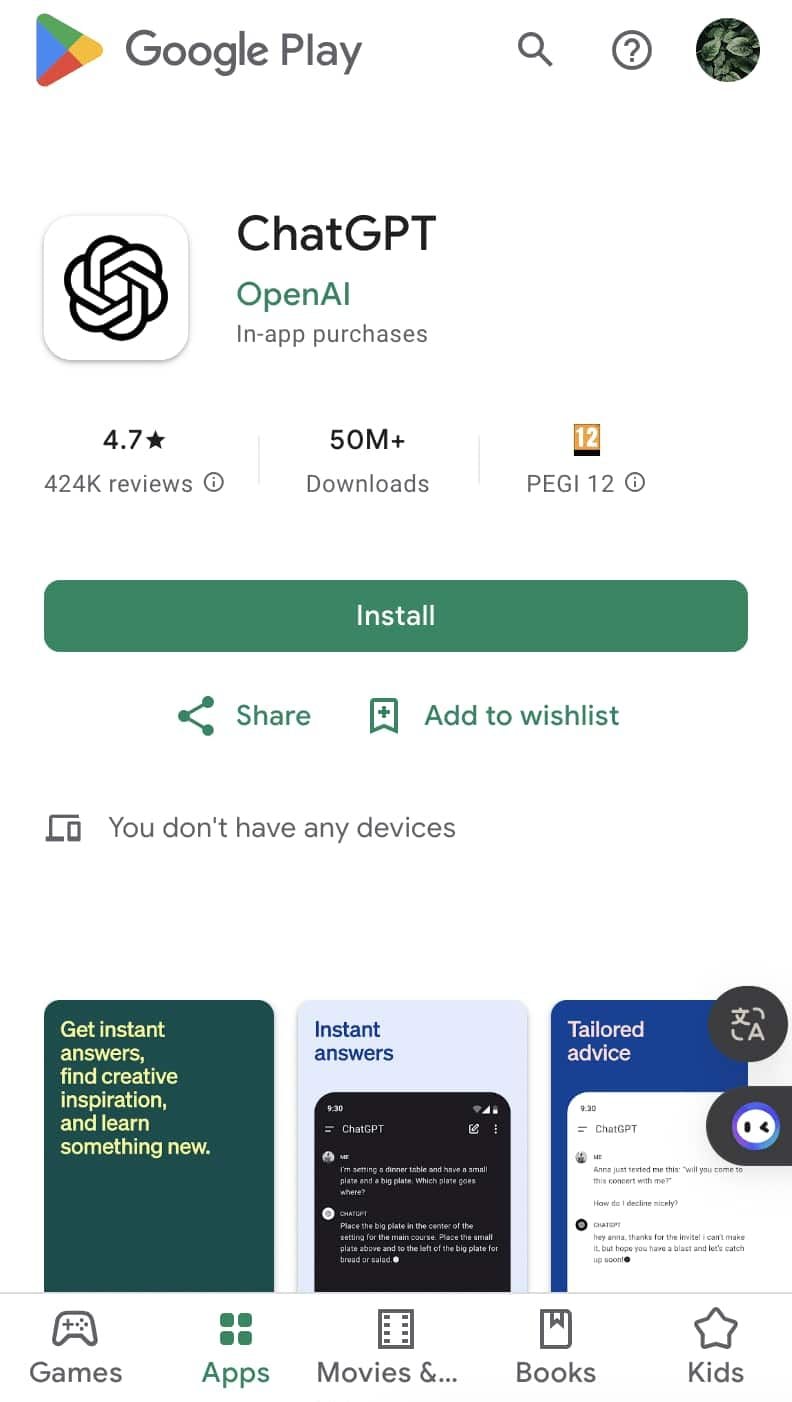
You can install it on your preferred device in just a few easy steps and tap into using this high-powered AI in putting work into anything from the following:ChatGPT Mobile1. For Android users:- Open the Google Play Store.- Type “ChatGPT” into the search bar and search.- Find the official app and click “Install.” Or you can directly visit this page from herehttps://play.google.com/store/apps/details?id=com.openai.chatgpt&hl=en_US.2. For iOS users:- Open the App Store.- Type “ChatGPT” into the search bar and search.- Find the official app, click “Get,” and install it. Even more directly, this step can be led to you from here https://apps.apple.com/us/app/chatgpt/id6448311069.ChatGPT PC- Visit the OpenAI official website here https://openai.com.- Locate the link to ChatGPT on the homepage and click to enter.- Register or log in to your OpenAI account.- Use the web version directly in your browser without needing to download any software.

Effectively Communicate with ChatGPT
4.8
1. Be Clear with Your Questions:When you ask specific questions, it is much easier for ChatGPT to understand what you need. You could skip asking for a general narrative of history like “Tell me about the history”, and instead may ask, “What are the main causes of World War I?”2. Provide Context:If what you are talking about is highly specialized, you may want to provide more background. Technical questions should also mention the tool or programming languages you are using.3. Ask Successively:If you feel overwhelmed by the information you may get, decompose your questions into smaller components and ask successively. You can first introduce a general concept and then go on with the details.4. Give Feedback and Adjust:If ChatGPT’s response is not what you expect, give feedback and ask for further clarification or adjustment of its answer.

What Can I Do with ChatGPT
4.8
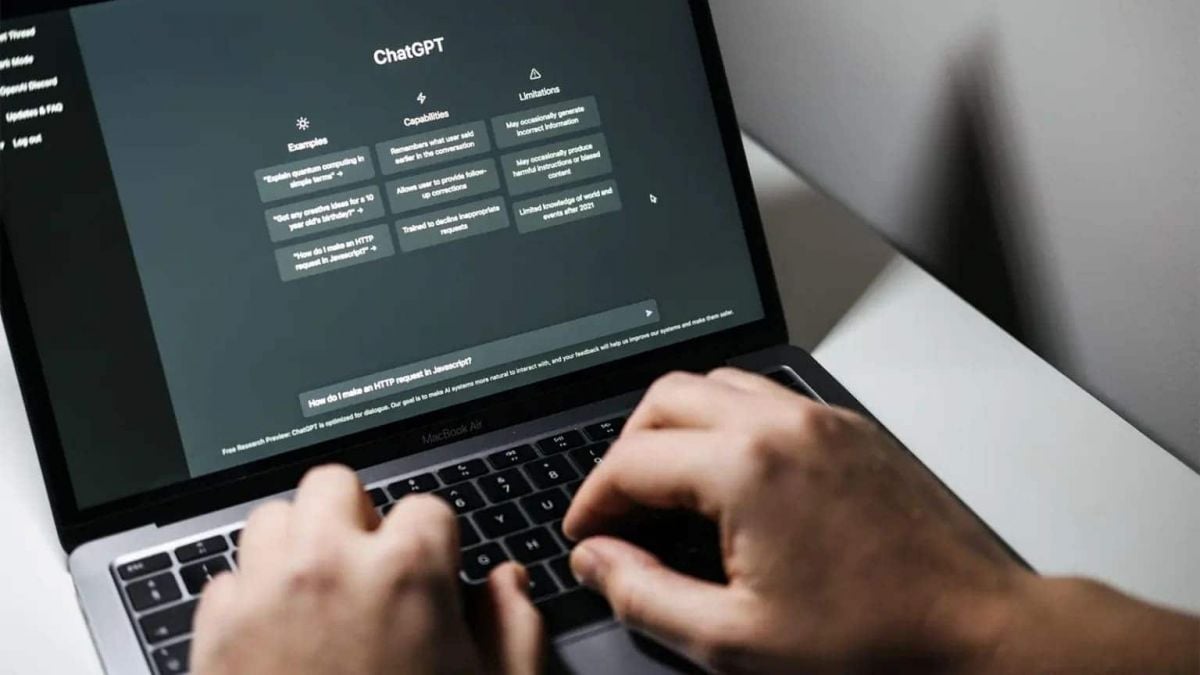
Uses1. Homework Help: Students could use ChatGPT model for homework help, knowledge review, and problem-solving.2. Content Creation: Through the tool, writers or content creators will be able to draft articles, get ideas, or edit text.3. Programming Support: For programmers, ChatGPT will assist in debugging code, advising on how programming can be done, or solving tech issues.4. Daily Task Management: Users can write emails, plan their schedule, or ask for recommendations regarding travel using it.Benefits1. Time-Efficiency: Most of the tasks/actions are automated, and/or information is provided to the users through ChatGPT instantaneously.2. Productive Results: Be it studying or working, in both cases, ChatGPT increases the productivity of the user by helping them complete the task faster than would have been possible without the tool.3. Increased Creativity: Newer ideas and concepts developed through AI elevate thinking and boost creativity.


ChatGPT vs. Other AI tools
4.8
1. Google GeminiFormerly named Bard, it is designed to work in perfect concert with Google services. Pulling information in real-time and offering unlimited questions at no additional cost, it nonetheless works only really well for those deeply embedded in the Google ecosystem. The contextual depth required for more in-depth, creative writing or deep discussions isn’t as accessible compared to ChatGPT.2. Microsoft CopilotIn fact, it integrates well with the Microsoft Office applications, providing document summarization, on-the-fly assistance within tools such as Word and Excel, among many other features. While Copilot will be very useful for users that spend most of their time in Microsoft products, in many ways it works at a more granular level and requires users to move in and out of various applications. ChatGPT, in contrast, is a better conversation tool in that regard, and doesn’t require quite as much application switching, thus making the workflow less jumpy.3. ClaudeDeveloped by Anthropic, focuses on safety and ethical AI use. It provides robust conversational capabilities and is designed to be helpful and harmless. However, while Claude excels in certain tasks like coding assistance and summarization, ChatGPT outperforms it in generating creative content and maintaining engaging dialogues. The extensive training data and advanced algorithms behind ChatGPT enable it to produce more varied and contextually rich responses.

About Securus Payments Solutions (Securus Debit)
3.8
What can I do with Securus Debit? You can add funds to a new or an existing phone number, you can purchase phone calls and video connect sessions, music and games for a tablet (availability varies by facility), eMessaging and a tablet service to help inmates make parole. There is no need to maintain separate prepaid accounts, which allows inmates the ability to use the funds to make calls to any type of phone number they wish. The feature is supposed to be available at correctional facilities that Securus works with, but specific services will differ by location.To access Securus Debit, families only need to fund their account via the mobile app or website on a one-time or recurring basis. It is claimed a small fee may be charged for each funding transaction, while transfers from the inmate's trust account are generally free. Securus Debit is an efficient way of funding the inmates telephone account, reducing the time it takes to set up an account and enabling family members to help maintain emotional connections with inmates in correctional institutions.

Stay Current of Google Translate Updates
4.3
Updating on Android Devices:1. Open the Google Play Store.2. Tap your profile picture at the top-right corner.3. Select “Manage apps & devices.”4. In the “Updates available” area, find Google Translate.5. Tap “Update.”Updating on iOS Devices:1. Launch the App Store on your iPhone/iPad.2. Tap your profile icon at the top corner.3. Scroll down to find Google Translate under “Updates Available.”4. Tap “Update” to update to the latest version.Updating Web Version1. The web interface (translate.google.com) gets automatically updated on Google servers.2. Clear cache in the browser to have the latest version.3. Refresh the webpage after clearing cache to get the latest version loaded.4. Look out for new features or new changes in the interface that indicate updates.
Maintain Your Discord Updated
4.7
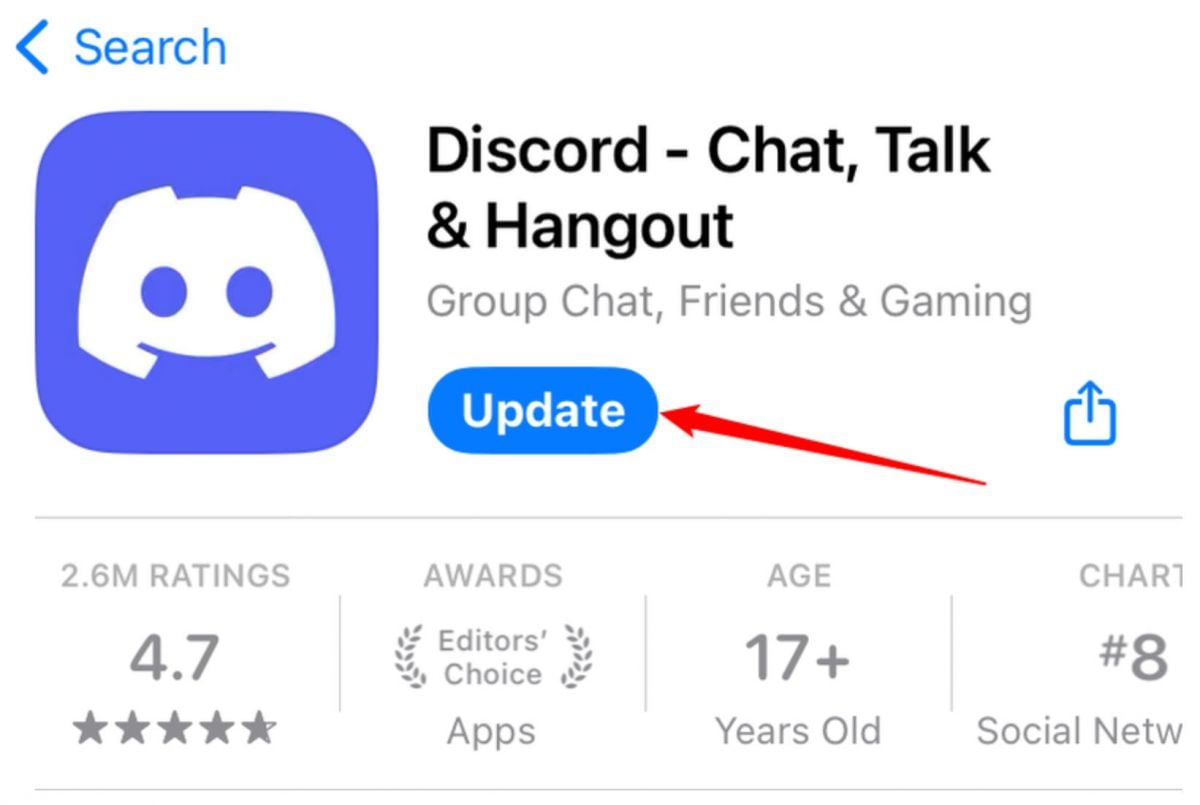
On Android:- Open the Google Play Store and tap your profile icon in the top-right corner.- Select Manage apps & device.- Under the Updates available tab, find Discord and tap Update.- To enable automatic updates for Discord specifically, go to the Discord app page in the Play Store, tap the three-dot menu, and select Enable auto-update.- You can also allow automatic updates for all apps under Settings > Network preferences > Auto-update apps.